How to Give Read-Only Access to Square
Square does not ship a single named "view-only" or "read-only" team role. The accurate way to grant genuine read-only access is to invite the person as a team member and assign them a custom permission set in which every action and edit toggle is switched off, leaving only the view-style permissions on (such as view reports and view sales). Money movement is structurally protected in any restricted set: only full-access team members can reach the Banking tab, and even Full access grants every permission except managing bank accounts. This guide covers signing in as the account Owner, creating a "View only" permission set with the action toggles disabled, inviting the team member and assigning that set, then sending the invitation. It also covers how to deactivate the member when access is no longer needed. The invited person gets their own login, so there is no password sharing.
Watch the walkthrough
Access to grant
Custom "View only" permission set (action and edit toggles off, only view-style permissions on) assigned to an invited Team member
Who you're granting access to
- Your bookkeeper, accountant, or another adviser you want to give view-only access.
Before you start
- Square account Owner login, or a team member whose permission set includes the Manage team members permission.
- The first name, surname, and email address or mobile number of the person you want to invite.
- Note: free plans (such as Square Shifts Free) let you create one custom permission set, which is enough for a single "View only" set. Creating multiple distinct custom sets requires a paid plan such as Advanced Access (formerly Team Plus), Square for Retail Premium, or Square Appointments Premium.
Step by step
- 1
Sign in to Square Dashboard as the Owner
Go to squareup.com/dashboard and sign in with the account Owner login, or with a team member whose permission set includes Manage team members. The Owner has the highest level of access and can grant access broadly.
- 2
Create a restricted view-only permission set
Navigate to Staff > Team > Permissions, then select Create permission set and pick the lowest starting level (Standard), then click Customise. Leave Full access off and turn off the action and edit toggles, such as issuing refunds, applying discounts, voids or comps, managing the cash drawer, editing items or inventory, editing team members or permissions, and Settings and account access. Leave ONLY the view-style permissions on (such as view reports and view sales), name the set 'View only', and save.
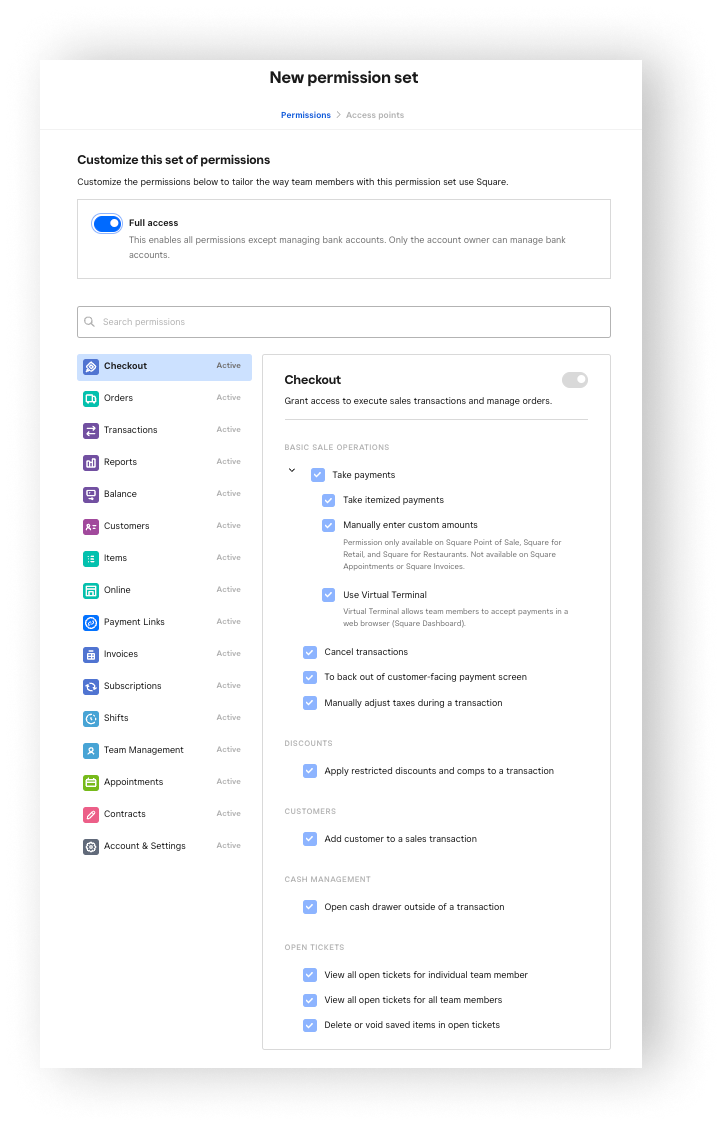
Source: Create and edit permission sets - Square Support Centre (Australia) - 3
Open the Team members screen
Go to Staff > Team > Team members (direct URL: squareup.com/dashboard/team/team-members). This is where you invite a new person to the account.
- 4
Invite the new team member
Select + Team member. Enter their first name, surname, and email address or mobile number.
- 5
Assign the view-only set and locations
In the permission set section, select the 'View only' permission set you created and do not turn on Full access. Assign the location or locations the permissions apply to, optionally add a job title, and skip any pay or banking details.
- 6
Send the invitation
Save the team member. Square emails or texts an invitation, and the person must accept it within 30 days to complete sign-up. They then sign in with their own credentials limited to the view-only set.
Removing access afterwards
- Sign in to Square Dashboard as the Owner, or as a member with the Manage team members permission.
- Go to Staff > Team > Team members and select the team member you want to remove.
- Click the more-options menu (•••) next to their name.
- Click Deactivate, then confirm Deactivate. Their POS and Dashboard access is revoked.
- Square does not hard-delete team members: deactivation preserves their information and historical records, and you can reactivate them later.
- To fully sever access, also revoke and rotate any shared device or POS passcode they used, since deactivation does not clear a shared device code.
If that option is not available
Free plans (such as Square Shifts Free) allow only one custom permission set, so if you have already used that single set for another purpose you may need a paid plan such as Advanced Access to add a separate "View only" set. On a free plan, take care not to loosen the shared set for everyone. If you cannot create a separate restricted set, consider exporting the specific reports your adviser needs rather than granting account access.
Frequently Asked Questions
No. Square does not ship a named view-only or read-only team role. You create read-only access by building a custom permission set with the action and edit toggles switched off, leaving only the view-style permissions on (such as view reports and view sales), then assigning it to an invited team member.
No. Money movement is structurally protected. Only full-access team members can reach the Banking tab, and even Full access grants every permission except managing bank accounts. So a properly restricted set with refunds and other action toggles turned off cannot refund or move money.
Not necessarily. Free plans such as Square Shifts Free let you create one custom permission set, which is enough for a single "View only" set. If you need multiple distinct custom permission sets, that requires a paid plan such as Advanced Access (formerly Team Plus), Square for Retail Premium, or Square Appointments Premium.
Each invited person gets their own login, so there is no password sharing. Square emails or texts them an invitation, and they must accept it within 30 days to complete sign-up and activate the view-only access.
Go to Staff > Team > Team members, select the person, open the more-options menu (•••), then click Deactivate and confirm. Square preserves their historical records, and you should also rotate any shared POS device passcode they used.
Related guides
Steps last checked against Square on 2026-06-15.
Based on official Square documentation: Add and manage team members - Square Support Centre (Australia), Create and edit permission sets - Square Support Centre (Australia), Delegated Team Management (Manage team members permission) - Square Support Centre (Australia), Square Advanced Access subscription and pricing - Square Support Centre (Australia), Team members and permissions (subtopic hub) - Square Support Centre (Australia), Getting Started with the Newly-Redesigned Square Permissions - Square Support Center, Square Advanced Access | Custom Permission Sets (product page). Square is a trademark of its respective owner; this guide is independent and for instruction only.
Want this handled for you?
Clever Ops connects and automates the systems mid-market businesses already run. Book a free assessment and we will map your stack.