How to give read-only access to FYI
Read-only access lets an adviser, accountant, or bookkeeper review how your FYI practice is set up without being able to change anything. FYI does not have a single read-only switch. Access is controlled by User Groups, which combine the cabinets a person can see with the functions they can use, so the practical way to grant read-only access is to set up a restricted group with only the cabinets you choose and no configuration permissions. This guide shows you how to create that restricted group, add the person, and send their invitation, plus how to remove the access at any time once the review is finished.
Watch the walkthrough
Access to grant
A restricted User Group with limited cabinets and no configuration permissions. FYI has no built-in read-only role, so the access is kept deliberately narrow: the person can view the cabinets you allow but cannot create or edit templates, automations, or views.
Who you're granting access to
- Anyone you need to give view-only access to: a bookkeeper, accountant, consultant, or another adviser.
Before you start
- You need to be an FYI Admin (Practice Settings access).
- The email address of the person you are giving access to.
- A spare FYI user licence, since FYI is licensed per active user.
Step by step
- 1
Open Practice Settings, then General
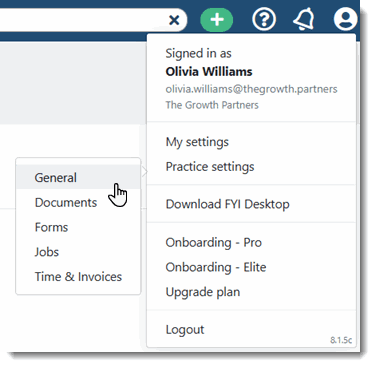
Sign in to FYI as an Admin. Click Settings (the cog) in the top right-hand corner, choose Practice settings from the drop-down, then open the General area. This is where Users and User Groups are managed.
Source: FYI help centre: Managing User Groups - 2
Create a restricted User Group
Open the User Groups tab and click Add. Name the group something clear like "External Reviewer". Set the Group type to "All" so it holds both Cabinets and Permissions. Switch All Cabinets to Off, then turn On only the cabinets you want the person to review. On the Permissions tab, leave the function permissions unticked so the group cannot create templates, automations, or other configuration. Save the group.

Source: FYI help centre: Managing User Groups - 3
Add the user
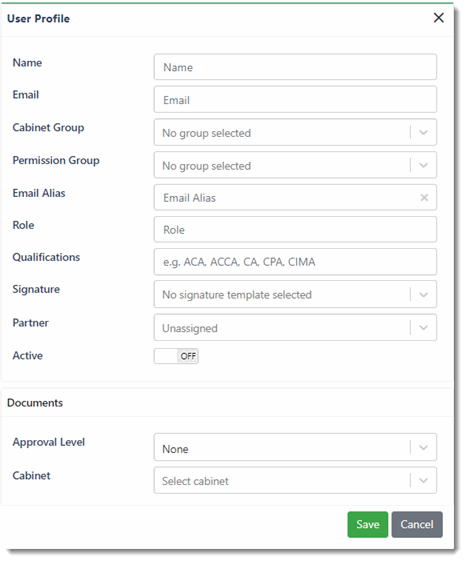
Open the Users tab and click Add. A blank User Profile displays. Enter the name and email address of the person you are giving access to, then assign them to the restricted User Group you just created. Save the user and make sure they are marked as Active.
Source: FYI help centre: Managing Users - 4
Send the invitation
Select the new user in the list and click Send Invitation. FYI emails them a link to log in and to add the FYI add-ins. Once they accept, they can view the cabinets you allowed but cannot change your configuration. Your documents and settings stay exactly as they are.
Removing access afterwards
- Go to Settings, then Practice settings, then General, then the Users tab.
- Open the user you added and set their status to Inactive (this frees up the licence), or delete the user.
- If you created the "External Reviewer" User Group only for this review, you can delete that group too. Access ends immediately.
If that option is not available
If you would rather not add a user or use a licence, you can share your screen on a short call and walk the reviewer through FYI while they map your cabinets and workflows. Never share your password.
Frequently Asked Questions
Not as a single setting. FYI controls access through User Groups, which combine the cabinets a person can see with the functions they can use. To keep someone read-only in practice, you create a restricted group that can see only the cabinets you choose and has no configuration permissions ticked.
FYI is licensed per active user, so you need a spare licence or it may add to your plan. If you would rather not use a licence, the screen-share option works just as well for a one-off review and costs nothing.
No. With the restricted User Group set up as described, they can view the cabinets you allow, but the function permissions that let someone create or edit templates, automations, and views are left off. The access is for reviewing, not changing anything.
Go to Practice settings, General, then the Users tab, open the user, and set them to Inactive or delete them. Access ends straight away and the licence is freed.
Only the cabinets you switch On for their User Group. Any cabinet left Off is hidden from them, so you can limit a review to a specific set of documents or client files rather than your whole practice.
Related guides
Steps last checked against FYI on 2026-06-09.
Based on official FYI documentation: FYI help centre: Managing Users, FYI help centre: Managing User Groups, FYI help centre: Inviting New Users to Start Using FYI. FYI is a trademark of its respective owner; this guide is independent and for instruction only.
Want this handled for you?
Clever Ops connects and automates the systems mid-market businesses already run. Book a free assessment and we will map your stack.