How to give read-only access to Ignition
Read-only access would let a trusted adviser, such as a bookkeeper, accountant, or consultant, review how your Ignition account is set up without being able to change anything. Ignition (formerly Practice Ignition) does not offer a true read-only or viewer role, so the closest option is its most limited role, Member. Be clear about what that means: a Member is locked out of your settings, templates, payments, and billing, but can still create and work in proposals, clients, and services. This guide explains how to grant the Member role with the right expectations, how to remove it at any time, and when a screen-share is the safer choice because the review must be strictly look-only.
Watch the walkthrough
Access to grant
Member role (the most limited role Ignition offers). Members cannot open Settings, the Service Library, Templates, Payments, or the Subscription and Billing page, but they can still create and edit proposals, clients, and services. Ignition has no dedicated read-only or viewer role, so this is limited access, not view-only.
Who you're granting access to
- Anyone you need to give limited access to: a bookkeeper, accountant, consultant, or another adviser reviewing your account.
Before you start
- You need to be an Admin on the Ignition account (usually the owner or principal user). Only Admins can add and edit users.
- The email address of the person you are giving access to.
Step by step
- 1
Open Settings, then Users
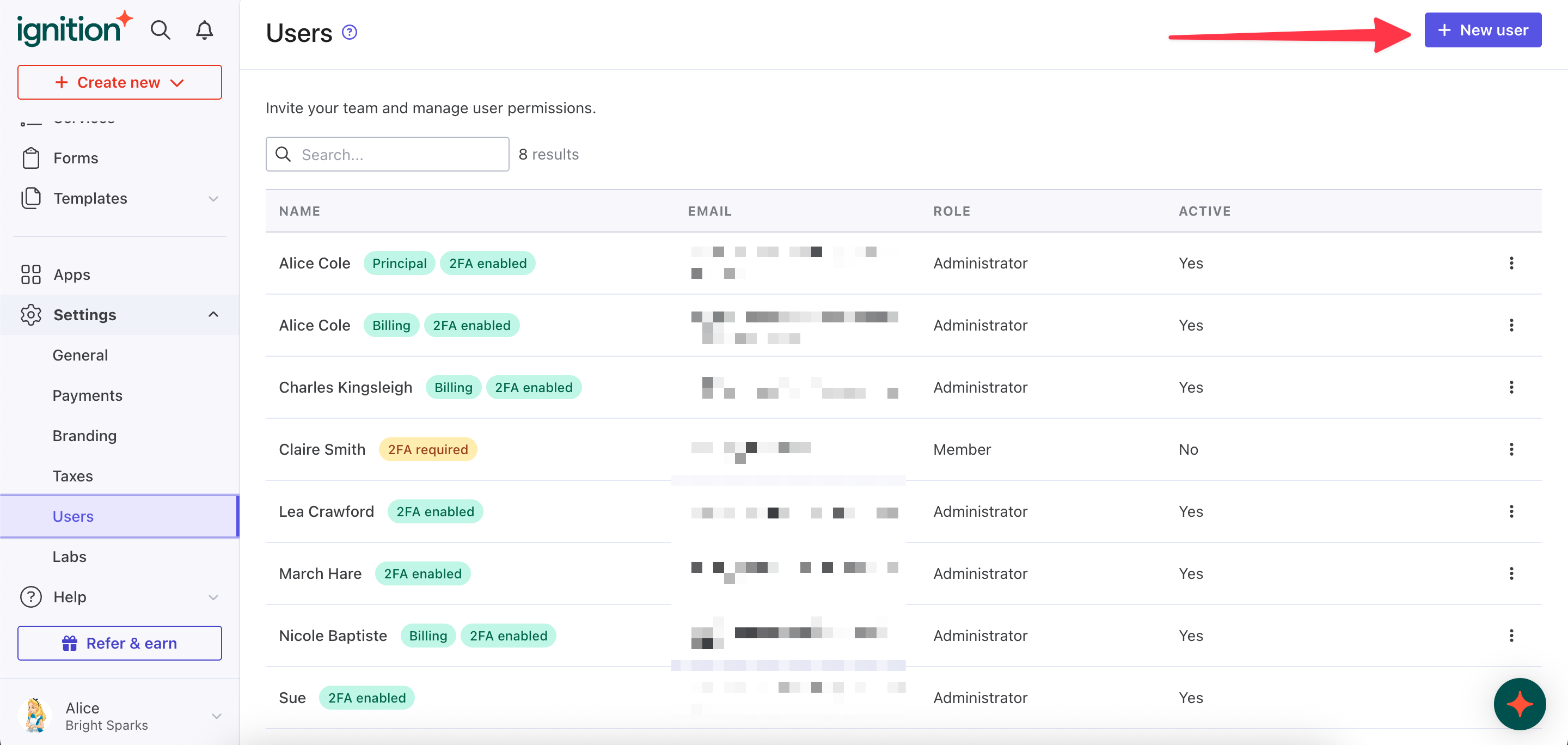
Sign in to Ignition. In the left-hand menu, click Settings, then Users. You will see the list of everyone on your account. Click the "New user" button in the top right.
Source: Ignition help centre: Adding and Editing Users - 2
Enter their details and choose the Member role
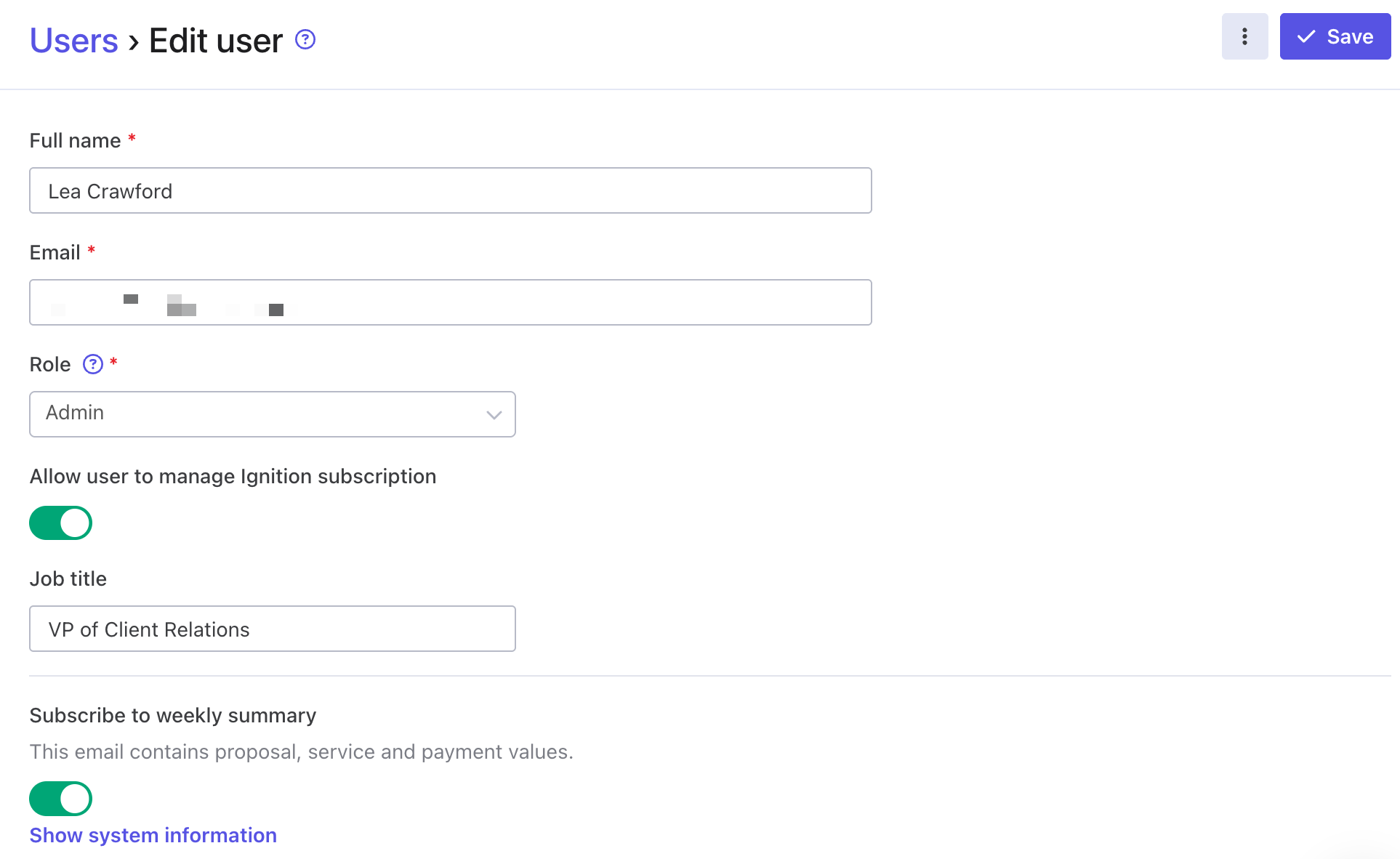
Enter the Full name and Email address of the person you are giving access to. Under Role, open the dropdown and select Member, not Admin. Member is the more limited of Ignition's two roles, but it is not view-only: a Member can still create and edit proposals, clients, and services. Grant it to a reviewer you trust to look without changing anything, and prefer the screen-share fallback if you need certainty that nothing can be changed.
Source: Ignition help centre: Adding and Editing Users - 3
Keep billing controls switched off
Leave the "Allow user to manage Ignition subscription" toggle switched off. This stops the invited user from touching your subscription or billing. The Job title and weekly summary options are optional and can be left as they are.
- 4
Save and send the invite
Click Save in the top right to create the user, then open the user again and click "Send invite" to email them a login link. Once the person you invited accepts the invitation, they can review how your account is set up without changing your settings or billing.
Removing access afterwards
- Go to Settings, then Users.
- Find the user in the list and click the three dots menu on the right of their row (or open the user).
- Choose the option to remove or deactivate the user and confirm. Their access ends immediately.
If that option is not available
Because Ignition has no read-only role, you may prefer not to add a Member user at all. If so, you can share your screen on a short call and walk the reviewer through your proposals, services, and billing setup. Never share your password.
Frequently Asked Questions
No. Ignition offers only two roles, Admin and Member. Member is the most limited role. A Member cannot open Settings, the Service Library, Templates, Payments, or the Subscription and Billing page, but it is not a strict view-only role. If you would rather not grant any standing access, the screen-share option works just as well for a one-off review.
A Member can see and work within proposals, clients, and services, which means they could create or edit records in those areas. They are locked out of your account settings, billing, and templates. For a review, agree up front that they will only look, keep the subscription toggle off, and remove the access as soon as the review is done. If even that is too much access, use the screen-share instead.
Ignition pricing depends on your plan. Some plans include a set number of users and adding more can affect your cost. If you are unsure, the safest option is the screen-share alternative, which adds no user to your account at all.
Go to Settings, then Users, find the user, open the three dots menu, and remove or deactivate the user. Access ends straight away. You can grant or revoke this access whenever you need to.
No. As long as you assign the Member role and leave the "Allow user to manage Ignition subscription" toggle switched off, the invited user cannot open the Subscription and Billing page, Payments, or your account settings.
Related guides
Steps last checked against Ignition on 2026-06-10.
Based on official Ignition documentation: Ignition help centre: Adding and Editing Users, Ignition help centre: Re-inviting a user in Ignition. Ignition is a trademark of its respective owner; this guide is independent and for instruction only.
Want this handled for you?
Clever Ops connects and automates the systems mid-market businesses already run. Book a free assessment and we will map your stack.