How to give read-only access to ServiceM8
Read-only access lets someone see your ServiceM8 account without being able to change anything. It is the safe way to let a bookkeeper, accountant, or consultant review your jobs, scheduling, clients, and workflow while every create, edit, and delete control stays out of reach. ServiceM8 does not have a single "read only" tick box, but you can build the same result with its Security Roles: you create a view-only role that hides every action button, then add the person on that role. This guide shows how to set it up step by step, and the access can be removed at any time.
Watch the walkthrough
Access to grant
A custom view-only Security Role with every action control disabled. ServiceM8 has no true read-only role, so this is the closest equivalent, and it only holds if every permission that creates, edits, sends, or deletes data is switched off when the role is built.
Who you're granting access to
- Anyone you need to give view-only access to: a bookkeeper, accountant, consultant, or another adviser who needs to review your account without changing anything.
Before you start
- You need to sign in as the Business Owner (or any role that can see Settings and Security Roles).
- The email address of the person you are giving access to.
- A couple of minutes to build the view-only role, then assign it.
Step by step
- 1
Open Settings, then Security Roles
Sign in to your ServiceM8 online dashboard. Click Settings, then choose Security Roles. This is where you control exactly what each role can see and do.
- 2
Add a new role
Click "Add Security Role". Give it a clear name such as "Read Only Reviewer" and a short description, then click Save Changes. Tip: rather than starting from scratch, you can base it on an existing limited role and then lock it down further in the next step.

Source: ServiceM8 help centre: How to create a custom security role - 3
Turn off every action button (make it view-only)
Select your new role and click Edit, then work through every menu and set each control that creates, changes, sends, or deletes data to Disabled. That means at least: "Show New Job Button", "Show Add Client Button", "Show Remove Client Button", "Show Remove Job Button", "Show Quote Button", "Show Invoice Button", "Show Work Order Button", "Show Client Signoff Button", "Show Text Note Button", "Show Photo Button", "Show Task Button", "Show Diagram Button", "Show Email Button", "Show SMS Button", "Show Forms Button", "Show Allocate Job Button", "Show Schedule Job Button", "Show Queue Job Button", "Can add new items/services", and "Can add/invite new staff members". Leave the view permissions enabled (Show Jobs, Show Clients, Show Job Diary, Show Job History) so the data can still be read. ServiceM8 adds controls over time, so scan the full list for anything else that adds, edits, sends, or removes and disable it too, then click Save Changes.
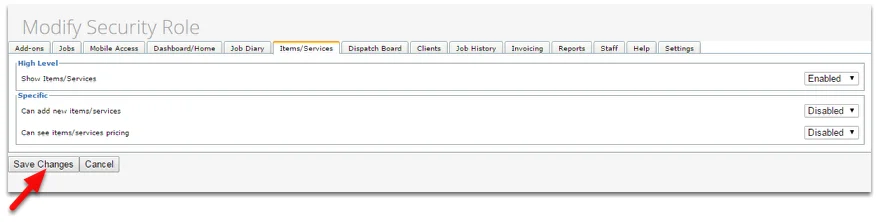
Source: ServiceM8 help centre: How to create a custom security role - 4
Add the reviewer as a staff member on that role
Go to Settings, then Staff, and add a new staff member (or click Edit on an existing placeholder). Enter the name and the email address of the person you are giving access to, then in the Security Role dropdown choose your new "Read Only Reviewer" role. Save. ServiceM8 sends an invitation to that email so the person can set their own password.
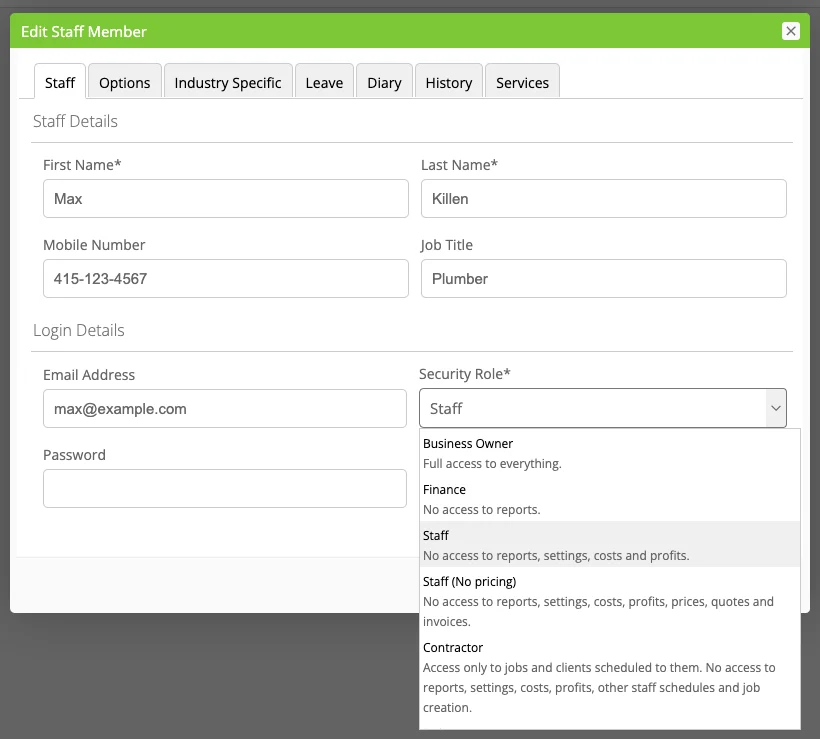
Source: ServiceM8 help centre: How to change a staff member’s Security Role - 5
Confirm they are in
The person you invited accepts the invitation and sets a password. Because the role has every action control disabled, they can view your jobs, clients, diary, and workflow, while the buttons that would create, edit, send, or delete anything are not shown. It is worth opening a job with them on their first login to confirm the role is as tight as you expect.
Removing access afterwards
- Go to Settings, then Staff.
- Click Edit next to the staff member you added.
- Set the staff member to Inactive (or delete the staff record) and Save. Their login stops working immediately.
- Optional: in Settings, then Security Roles, you can also delete the "Read Only Reviewer" role once it is no longer needed.
If that option is not available
If you would rather not set up a role and a login, you can share your screen on a short call and walk the reviewer through ServiceM8 instead. There is never any need to share your password.
Frequently Asked Questions
No. ServiceM8 controls access through Security Roles rather than a single read-only setting. The safe equivalent is a custom role with every create, edit, and delete button turned off, while the view permissions stay on. That is exactly what this guide sets up.
Not if the role is built as described above. With every action control disabled, the buttons to create jobs, quotes, invoices, work orders, notes, photos, tasks, emails, SMS messages, or forms are simply not shown. ServiceM8 does add controls over time, so when you build the role, scan the full permission list (the Security Roles Reference linked below) and disable anything that adds, edits, sends, or removes data. A quick test with the new login before the review starts confirms nothing can be changed.
No. ServiceM8 does not charge per user: every paid plan includes unlimited staff logins, and pricing is tiered by how many jobs you create each month (only the Free plan is limited to a single user). A reviewer login does not create jobs, so it should not change your bill, though the screen-share fallback remains the lightest option if you would rather add nothing at all.
Go to Settings, then Staff, click Edit next to the staff member you added, and set them to Inactive or delete the record. Access ends straight away. You can also delete the custom Security Role afterwards if it is no longer needed.
Yes. A view-only Security Role lets the person see your account without being able to change it, and you stay in full control. You can remove the access at any time, and you never need to hand over your own password.
Related guides
Steps last checked against ServiceM8 on 2026-06-10.
Based on official ServiceM8 documentation: ServiceM8 help centre: How to create a custom security role, ServiceM8 help centre: How to change a staff member’s Security Role, ServiceM8 help centre: Security Roles Overview, ServiceM8 help centre: Security Roles Reference. ServiceM8 is a trademark of its respective owner; this guide is independent and for instruction only.
Want this handled for you?
Clever Ops connects and automates the systems mid-market businesses already run. Book a free assessment and we will map your stack.