How to give read-only access to PandaDoc
Read-only access lets someone, such as a bookkeeper, accountant, or consultant, review your PandaDoc setup without being able to change or send anything. PandaDoc has no account-wide read-only role on its standard plans, so the genuinely view-only route is sharing the relevant documents with the person as a Collaborator set to "Can view and comment". You can also give them their own login with the Member role, but a Member is not read-only: a Member can create documents and send their own, even though your settings, billing, and other users' documents stay out of reach. This guide covers both routes, what each one really allows, and how to remove the access at any time. A full view-only custom role exists only on PandaDoc's Enterprise plan.
Watch the walkthrough
Access to grant
View-and-comment Collaborator on specific documents (genuinely read-only, no paid seat). PandaDoc has no account-wide read-only role on standard plans. The Member role is the most limited full login, but it is not read-only: a Member can create documents and send their own. A full view-only custom role can be built with the custom roles feature, which PandaDoc offers on its Enterprise plan only.
Who you're granting access to
- Anyone you need to give view-only access to: a bookkeeper, accountant, consultant, or another adviser who needs to review your setup without changing anything.
Before you start
- You need to be the Account Owner or an Admin (the only roles that can invite users and manage the team).
- The email address of the person you are giving access to.
- A spare seat, only if you choose the Member login route (PandaDoc counts paid seats per user; Collaborators do not use a seat). The Account Owner can see spare seats under Settings, then Team and seats.
Step by step
- 1
Decide which route suits you
For a review, sharing specific documents as a view-only Collaborator is the genuinely read-only route: the person can open and comment on exactly what you share, nothing else, and it does not use a paid seat. The alternative is inviting them as a Member, which gives them their own login but is not read-only: a Member can create documents and send their own, even though they cannot see your settings, billing, or other people's documents. Choose the Collaborator route unless they genuinely need their own login.
- 2
Share documents with a view-only Collaborator
Open a document you want reviewed, click Invite, then Collaborator, add the person's email address, and leave the permission on "Can view and comment". They receive an email link to just that document and cannot edit it. Repeat for each document or template that matters to the review, and share only what is relevant. If this covers everything they need, you are done; the remaining steps are only for giving someone their own login.
- 3
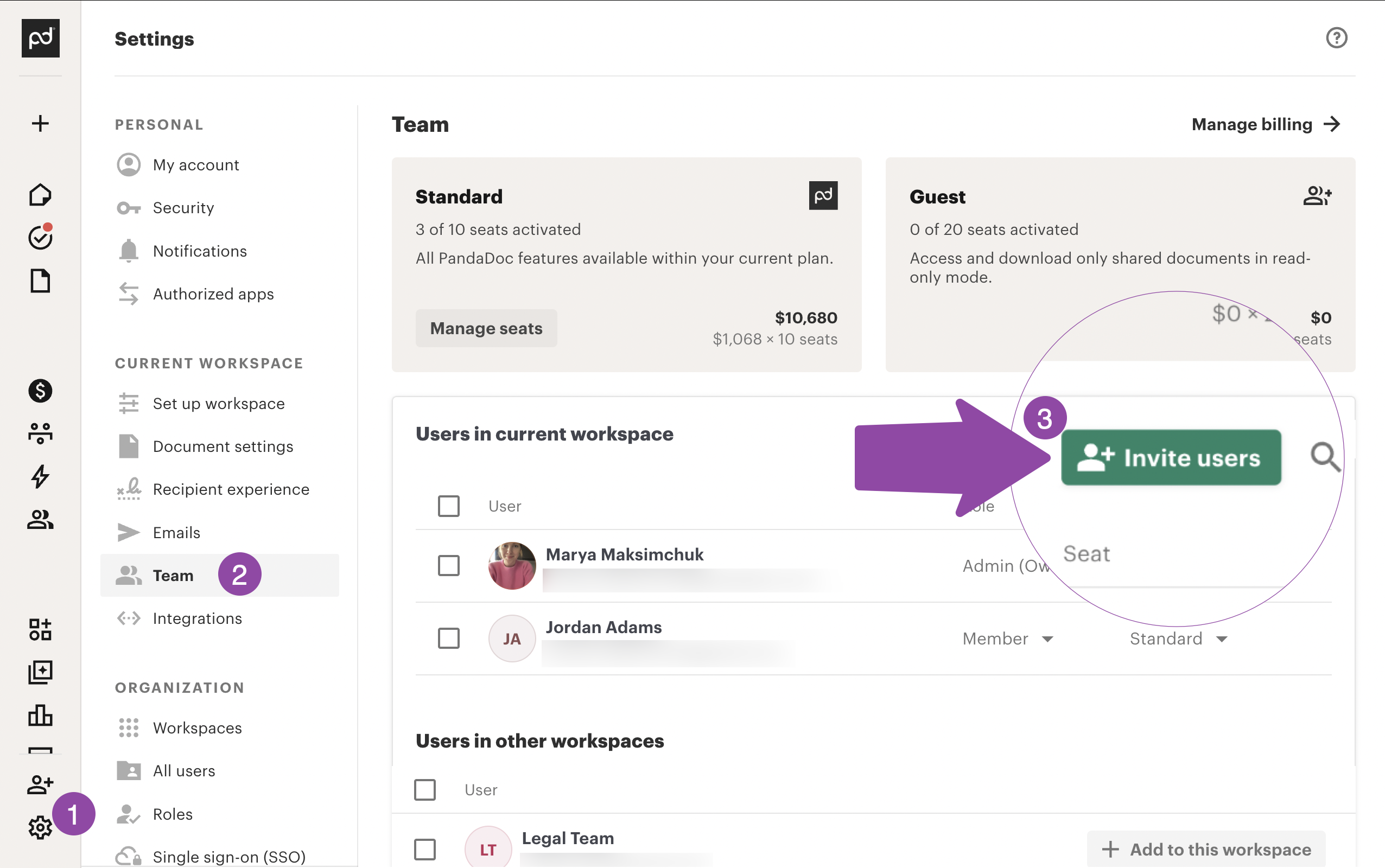
Open Settings, then Team and seats
If the person does need their own login, sign in to PandaDoc as the Account Owner or an Admin. Make sure the correct workspace is selected, then go to Settings, then Team and seats. You will see your seats and the list of users in the current workspace.
Source: PandaDoc help centre: Add and remove users - 4
Invite a user and choose the lowest role
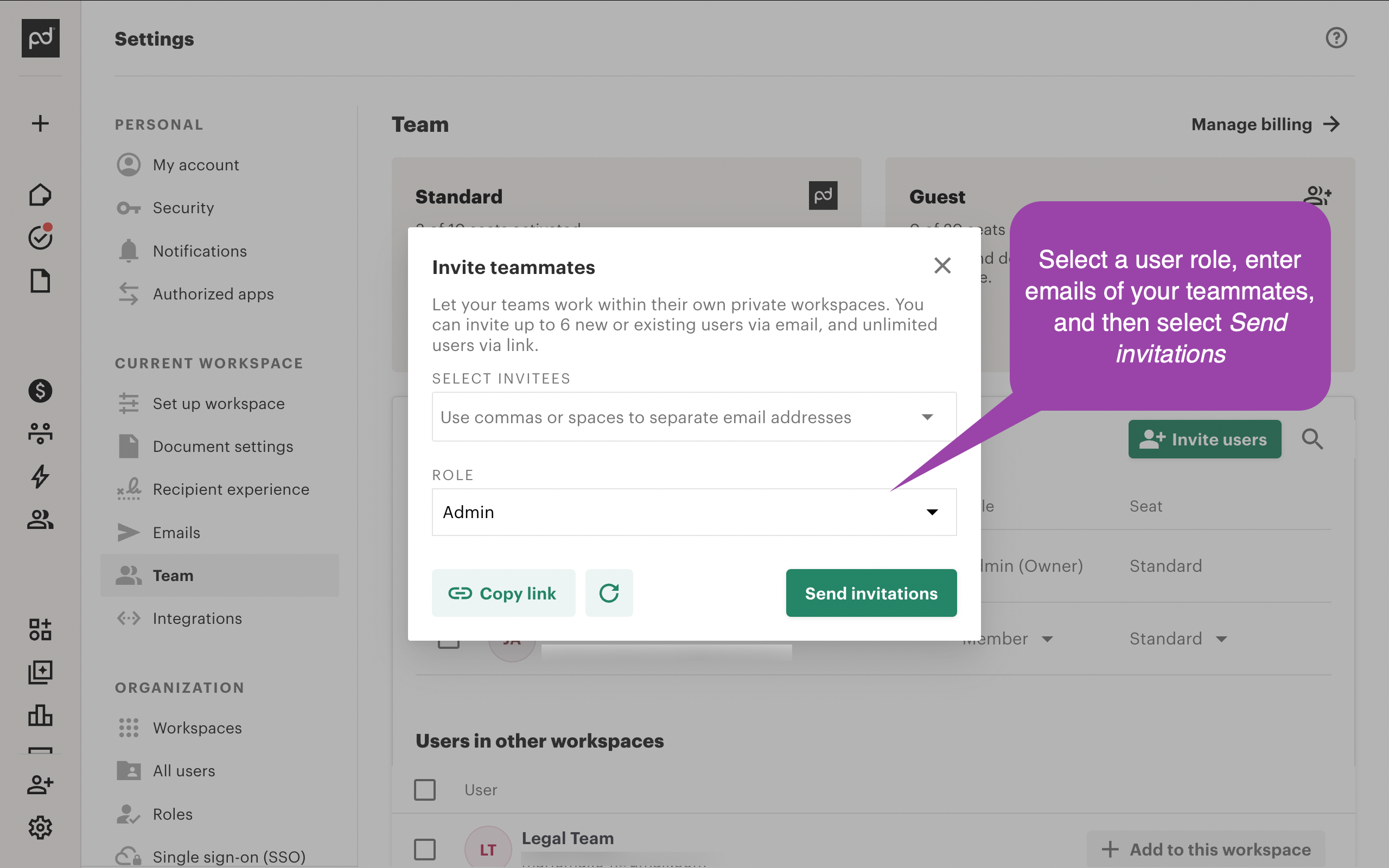
Click "Invite users". In the "Invite teammates" pop-up, enter the email address of the person you are giving access to under Select invitees, then set the Role dropdown to Member, which is the most limited standard role. Avoid Admin or Manager. A Member only sees documents they create or are added to, and cannot reach your settings, billing, or other users’ work. Be clear about what this allows, though: a Member can still create documents and send their own, so it is limited access, not read-only. If that is more than the review needs, stay with the Collaborator route.
Source: PandaDoc help centre: Add and remove users - 5
Send the invitation
Click "Send invitations". PandaDoc emails the person a link to join the workspace. Once they accept it and set a password, they can sign in. Their own document list starts empty, so share the specific documents they should review with them as a Collaborator (step 2). Nothing in your account changes when they accept.
Removing access afterwards
- Go to Settings, then Team and seats.
- Hover over the user you want to remove and click the three dots (the ellipsis menu) on the right.
- Select "Remove user" and confirm. If they were added to more than one workspace, tick "Remove from all workspaces". Access ends immediately.
If that option is not available
If you would rather not add a user at all, a short call where you share your screen and walk an adviser through PandaDoc works well for a review. They can see your templates, approval flow, and how documents move, and there is nothing to remove afterwards. Never share your password with anyone, even an adviser.
Frequently Asked Questions
Not on its standard plans. The genuinely view-only option is sharing individual documents with a Collaborator set to "Can view and comment", which has no edit rights and uses no paid seat. The most limited full login, Member, is not read-only: a Member can create documents and send their own. A full view-only role can be built with the custom roles feature, which PandaDoc offers on its Enterprise plan only.
A Member cannot touch your settings, templates library, billing, or other people’s documents. They are not view-only, though: a Member can create documents and send the ones they own. If nothing should be created or sent during the review, share specific documents as a Collaborator set to "Can view and comment" instead, which has no edit rights at all, or use a screen-share.
It depends on your plan. PandaDoc counts paid seats per user, so adding a Member may use a spare seat. Inviting someone as a Collaborator on a single document does not use a paid seat. The Account Owner can check spare seats under Settings, then Team and seats before inviting.
A Member is a full user who takes a seat in the workspace, sees documents they create or are added to, and can create and send their own. A Collaborator is added to a single document or template only and, when set to "Can view and comment", cannot edit it. A Collaborator does not use a paid seat, which makes it the lighter and genuinely read-only option for a one-off review.
Go to Settings, then Team and seats, hover over the user, click the three dots, and choose Remove user. Access ends straight away. You can also simply un-share an individual document if you only added someone as a Collaborator.
Related guides
Steps last checked against PandaDoc on 2026-06-10.
Based on official PandaDoc documentation: PandaDoc help centre: Add and remove users, PandaDoc help centre: Account roles, PandaDoc help centre: Sharing documents with collaborators, PandaDoc help centre: Custom roles. PandaDoc is a trademark of its respective owner; this guide is independent and for instruction only.
Want this handled for you?
Clever Ops connects and automates the systems mid-market businesses already run. Book a free assessment and we will map your stack.