How to give read-only access to monday.com
Read-only access lets someone see your monday.com boards and how work flows through them without being able to edit, move, or delete anything. monday.com calls this role a Viewer. People grant it so an adviser, bookkeeper, accountant, or consultant can review their account, audit a process, or follow a project without any risk of changing data. Viewers are unlimited and do not count toward billing on any plan, so adding one does not change your subscription, and you can remove the access at any time. This step-by-step guide shows how to invite someone as a Viewer and how to revoke it later.
Watch the walkthrough
Access to grant
Viewer (read-only), not Member or Admin. No editing rights anywhere on the account.
Who you're granting access to
- Anyone you need to give view-only access to: a bookkeeper, accountant, consultant, or another adviser.
Before you start
- You need to be an admin, or a member whose account settings allow you to invite people (otherwise the invite icon lets you request that your admin sends it).
- The email address of the person you are giving access to.
Step by step
- 1
Open the Invite members window
Sign in to monday.com and click the "Invite members" icon in the top right of the top pane (the person-with-a-plus icon). A pop-up window opens where you can invite people to your account.
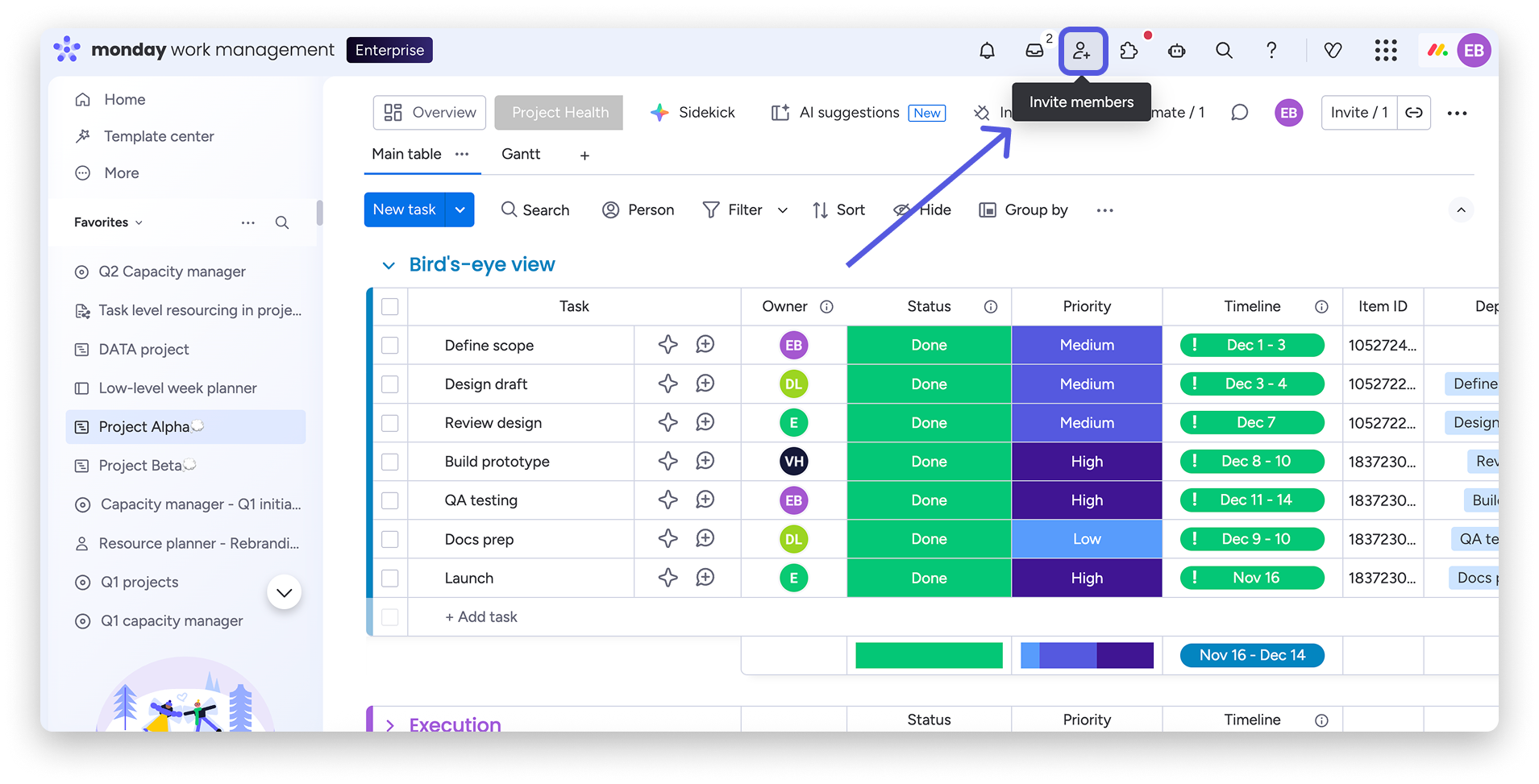
Source: monday.com help centre: How to invite users to join an account - 2
Enter the email and choose Viewer
In the "Invite with email" field, type the email address of the person you are giving access to. Beside the field there is an access level dropdown set to "Member" by default. Change it to "Viewer". Viewers have read-only access and cannot change your data.

Source: monday.com help centre: How to invite users to join an account - 3
Send the invitation
You can leave the "Choose team" field empty. Click "Invite". monday.com emails the person an invitation. Once the person you invited accepts it, they can view your boards but cannot change anything. Nothing on your boards changes when they accept.
Removing access afterwards
- Click your profile picture (top right) and select Administration, then open the Directory section and choose Users.
- Use the search bar to find the user you want to remove.
- Click the three-dot menu next to their name and select "Deactivate user", then follow the prompts. Their access ends immediately, and a deactivated user does not count toward your seats.
- If you ever want their data fully removed, you can later open the same three-dot menu and choose "Delete user details".
If that option is not available
If you would rather not add a user, you can share your screen on a short call and walk the reviewer through your boards while they map how work flows. No one should ever ask for your password.
Frequently Asked Questions
No. A Viewer is read-only. They can open boards, items, and updates and filter within a board, but they cannot create or delete boards, edit any content, change board settings, post updates, or be made a board owner. It is the safest way to let someone review your account.
No. monday.com lets you invite an unlimited number of Viewers regardless of your plan, and Viewers do not count toward billing. Adding a read-only reviewer does not change your subscription cost.
A Viewer can see Main boards plus any Shareable or Private boards they are invited to. If you want to limit access to a single project, create or use a Shareable or Private board and invite the reviewer only to that board, leaving them off the others. You can set whatever scope suits you.
A Member is a full collaborator who can create and edit boards, update items, and work in the account. A Viewer is read-only: they can see and follow work but cannot make any changes. For an external adviser who only needs to review, Viewer is the right choice.
Click your profile picture, go to Administration, then Directory and Users, find the user, open the three-dot menu and choose Deactivate user. Access ends straight away. You can deactivate or delete the user whenever the review is finished.
Related guides
Steps last checked against monday.com on 2026-06-09.
Based on official monday.com documentation: monday.com help centre: How to invite users to join an account, monday.com help centre: User types explained, monday.com help centre: How to manage users on your account, monday.com help centre: Shareable Boards. monday.com is a trademark of its respective owner; this guide is independent and for instruction only.
Want this handled for you?
Clever Ops connects and automates the systems mid-market businesses already run. Book a free assessment and we will map your stack.