How to give read-only access to BGL CAS 360
Read-only access lets you invite someone into your BGL CAS 360 firm with the View Only role, so they can review your company and SMSF compliance data and see how it flows without being able to change, lodge, or delete anything. People usually grant read-only access so an accountant, bookkeeper, consultant, or other adviser can look over the records and understand the setup while every form, document, and lodgement stays exactly as it is. It takes a few minutes to set up, and you can remove or disable the access at any time.
Watch the walkthrough
Access to grant
View Only role (read-only). No lodgement, editing, or document signing.
Who you're granting access to
- Anyone you need to give view-only access to: a bookkeeper, accountant, consultant, or another adviser.
Before you start
- You need to be an Admin user in CAS 360. Only Admin users can invite others and assign roles.
- The email address, first name, and last name of the person you are giving access to.
Step by step
- 1
Open the Users page
Sign in to CAS 360. From the top toolbar, hover your mouse over the App Switcher icon and select Users. This opens the user management area for your firm.

Source: CAS 360 Level 1 training manual (BGL) - 2
Go to Invitations
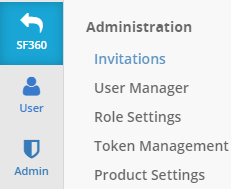
On the Users page, hover your cursor over Admin and select Invitations from the side menu. You will be taken to the Invitations page, which lists current and pending invitations.
Source: CAS 360 Level 1 training manual (BGL) - 3
Invite a new user
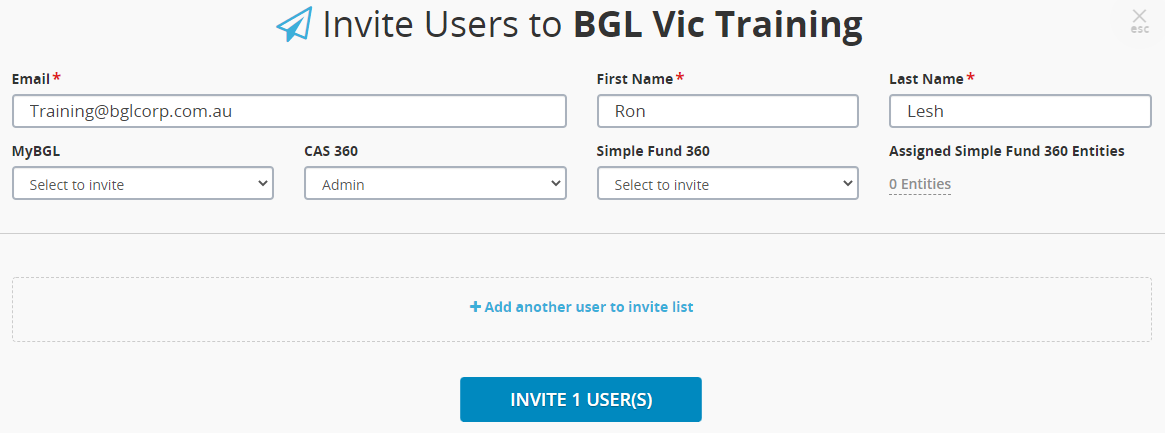
Select "+ Invite New User". Enter the first name, last name, and email address of the person you are giving access to. You can invite more than one user at a time.
Source: CAS 360 Level 1 training manual (BGL) - 4
Set the User Role to View Only
From the CAS 360 User Role dropdown, choose "View Only". This role lets the person see your CAS 360 data without being able to create, edit, lodge, or delete anything. Leave the other roles (User, Manager, Admin, Accountant) unselected.
- 5
Send the invitation
Select "Invite User(s)". CAS 360 emails the person an invitation to join your firm, which stays valid for a limited time. Once they accept, they can view your records but not change anything. Nothing in your data changes when the invitation is accepted.
Removing access afterwards
- From the App Switcher icon, select Users, then hover over Admin and open the User Manager.
- Search for and locate the user in the list.
- Select the option to delete the user. When the confirmation message appears, select Yes. Access ends immediately.
- Alternatively, you can leave the account in place and switch the CAS 360 toggle next to that user to off, which disables their access without deleting them.
If that option is not available
If you would rather not add a user, you can share your screen on a short call and walk the reviewer through CAS 360 instead. You should never need to share your password.
Frequently Asked Questions
No. The View Only role lets the person view your company and SMSF compliance data, but they cannot create, edit, lodge forms with ASIC, sign documents, or delete anything. It is the safest way to let someone review your firm.
No. CAS 360 allows unlimited users, so adding a View Only reviewer does not change your subscription. Only Admin users can send the invitation and assign the role.
Open Users, then the User Manager under Admin, find the user, and delete them, confirming with Yes. Access ends straight away. You can also just toggle off their CAS 360 access to disable it without deleting the account.
The invitation email is sent to the address you entered and is valid for a limited time (around five days). If it expires before the person accepts, simply send a new invitation from the Invitations page.
Yes. CAS 360 is role-based and every user account has an audit trail that records the action performed and the IP address it came from, so you can see exactly what a View Only reviewer has looked at.
Related guides
Steps last checked against BGL CAS 360 on 2026-06-09.
Based on official BGL CAS 360 documentation: CAS 360 Level 1 training manual: Invite User and User Roles (BGL), CAS 360 Australia help centre: Invite Users / Adding users, CAS 360 Australia help centre: User Roles, CAS 360 Australia help centre: How to remove or disable a user. BGL CAS 360 is a trademark of its respective owner; this guide is independent and for instruction only.
Want this handled for you?
Clever Ops connects and automates the systems mid-market businesses already run. Book a free assessment and we will map your stack.