How to give read-only access to ServiceM8 Pay
Read-only access lets someone, such as a bookkeeper, accountant, or business adviser, view your ServiceM8 Pay payment records without being able to change, approve, or send anything. ServiceM8 Pay is not a separate login. It lives inside ServiceM8, and your payment records appear against your jobs and invoices in the same account. To let an adviser review how payments flow through your business, you add them as a staff member in ServiceM8 with the most limited security role available, and they view the payment records there. ServiceM8 does not offer a true read-only role, so you keep the role as tight as possible. You can remove the access at any time.
Watch the walkthrough
Access to grant
Read-only intent, within ServiceM8. ServiceM8 has no dedicated read-only role, and even its most restricted built-in roles still allow some actions, so you use the tightest role you can (ideally a custom view-only Security Role) and agree that the adviser will only view payment records, not change them.
Who you're granting access to
- Anyone you need to give view-only access to: a bookkeeper, accountant, consultant, or another adviser.
Before you start
- You need to be the Account Owner or have access to Account, Settings, Staff (usually the owner or an admin).
- The email address of the person you are giving access to.
- No spare licence is needed: ServiceM8 paid plans include unlimited staff logins, with pricing tiered by monthly job volume (only the Free plan is limited to one user).
Step by step
- 1
Open Account, Settings, Staff
Sign in to your ServiceM8 online dashboard. Click Account, then Settings, then Staff. This is where all staff logins and their security roles are managed. The Security Roles tile in Settings also shows what each role can and cannot do.
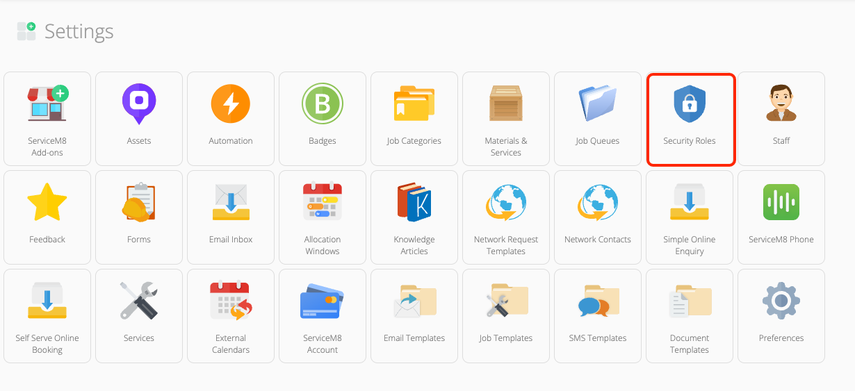
Source: ServiceM8 help centre: Security Roles Overview - 2
Add the reviewer as staff
Click to add a new staff member (for example "New Staff" or "Add Staff"). Enter the first name, last name, and the email address of the person you are giving access to.
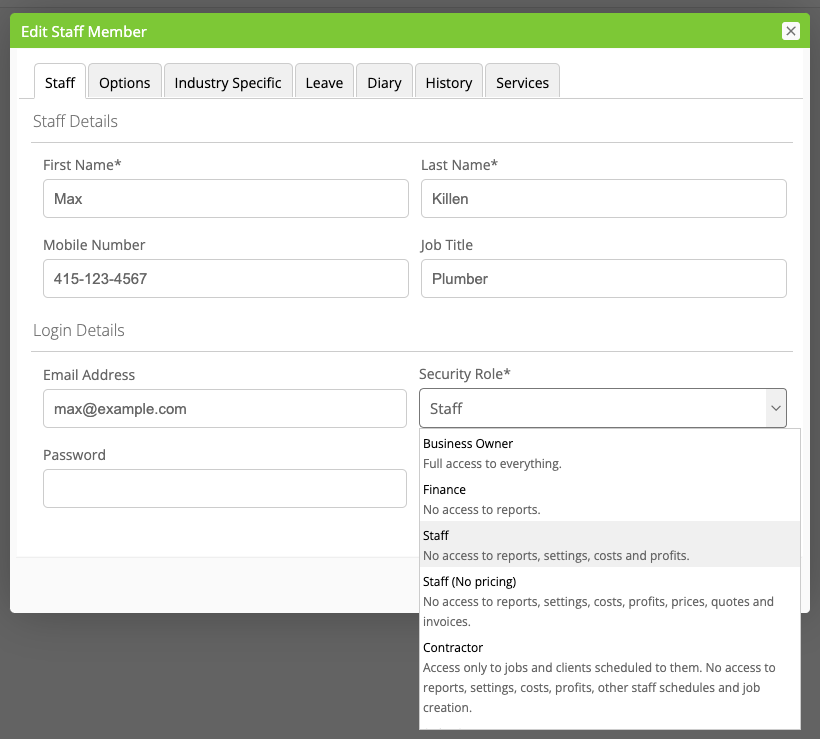
Source: ServiceM8 help centre: Security Roles Overview - 3
Set the most restricted security role
In the Security Role dropdown, choose the most limited role available, such as "Staff (No Pricing)" or "Strict Contractor". ServiceM8 does not offer a pure view-only role, and even its most restricted built-in roles still allow some actions, so for a tighter setup build the custom view-only Security Role from our ServiceM8 read-only guide first and choose that role here instead. Save the staff member. Either way, it helps to agree in writing that the adviser is only viewing payment records and will not edit, approve, or send anything.
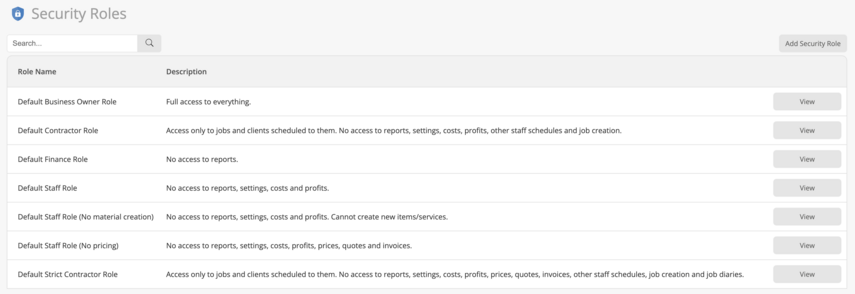
Source: ServiceM8 help centre: Security Roles Overview - 4
Show the reviewer where the payment records sit
ServiceM8 Pay payments appear against your jobs and in the Invoicing area. A paid job moves from "Awaiting Payment" to the "Paid" tab, and the payment shows on the job invoice with its date and method. That, plus your ServiceM8 Pay reconciliation in your accounting software, is what an adviser reviews.
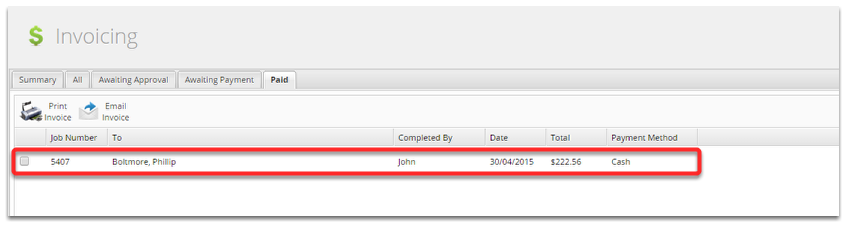
Source: ServiceM8 help centre: How to complete a job and receive payment online - 5
Confirm and review
The person you invited accepts the staff invitation and signs in. They can now view how payments are captured and reconciled, but not change them. Nothing in your account changes while they look.
Removing access afterwards
- Go to Account, Settings, Staff.
- Click Edit next to the staff member you added.
- Set the staff member to inactive, or delete the login, and Save. Their access ends immediately.
If that option is not available
Because ServiceM8 has no true read-only role, the cleanest option is often a screen-share. Hop on a short call, share your screen, and walk the reviewer through your jobs, the Invoicing tabs, and your ServiceM8 Pay records while they map how money flows. You never share your password and you never add a login.
Frequently Asked Questions
No. ServiceM8 Pay sits inside ServiceM8, and the payment records live against your jobs and invoices in the same account. Access is covered by your ServiceM8 staff access, so there is nothing separate to set up for ServiceM8 Pay itself.
No. ServiceM8 does not offer a dedicated view-only role. The most restricted options, such as "Staff (No Pricing)" or "Strict Contractor", still allow some actions. The safest approach is to use the tightest role available and agree that the person will only view payment records, or to use a screen-share instead.
A paid job moves from the "Awaiting Payment" tab to the "Paid" tab in the Invoicing area, and the payment appears on the job invoice with its date and method. Processing fees are reconciled in your accounting software, which can be reviewed alongside.
No. ServiceM8 does not charge per user: every paid plan includes unlimited staff logins, and pricing is tiered by how many jobs you create each month (only the Free plan is limited to a single user). A reviewer login does not add job volume, so it should not change your bill. If you only need a one-off review, a screen-share avoids adding a login altogether.
Go to Account, Settings, Staff, click Edit next to the staff member you added, then set them inactive or delete the login and Save. Access ends straight away, so it is safe to remove as soon as the review is finished.
Related guides
Steps last checked against ServiceM8 Pay on 2026-06-10.
Based on official ServiceM8 Pay documentation: ServiceM8 help centre: How to change a staff member’s Security Role, ServiceM8 help centre: Security Roles Overview, ServiceM8 help centre: How to complete a job and receive payment online, ServiceM8 help centre: How to get started with ServiceM8 Pay. ServiceM8 Pay is a trademark of its respective owner; this guide is independent and for instruction only.
Want this handled for you?
Clever Ops connects and automates the systems mid-market businesses already run. Book a free assessment and we will map your stack.