How to give read-only access to a Google Workspace shared inbox
Read-only access would let someone, such as a bookkeeper, accountant, or consultant, review a Google Workspace shared inbox (for example hello@ or info@) without being able to change anything. Gmail does not have a true read-only viewer role, and its closest feature, mailbox delegation, actually grants more than viewing: Google states that a delegate can read, send, and delete email on your behalf, although they can never see your password or change your account settings. This guide covers both practical options honestly: a short screen-share when the review genuinely must be view-only, and mailbox delegation when you are happy to trust the person with fuller mailbox access. Either way, no password is ever shared and access can be removed at any time.
Watch the walkthrough
Access to grant
Gmail mailbox delegation, which is broader than read-only: a delegate can read, organise, and search mail, and can also send and delete it. They cannot change the password or account settings, and no password is ever shared. If the review must be strictly view-only, use the screen-share option below instead.
Who you're granting access to
- Anyone you need to give view-only access to: a bookkeeper, accountant, consultant, or another adviser.
Before you start
- You need to be able to sign in to the shared inbox account (or have someone who can), or be a Google Workspace administrator.
- Gmail delegation only works between accounts in the same Workspace organisation. Delegating to an outside email address is not possible, so this usually means either delegating to an internal account, or using the screen-share fallback below.
- A Workspace administrator may first need to turn on mail delegation for your organisation.
Step by step
- 1
Check that mail delegation is allowed (administrator)
If you are a Google Workspace administrator, sign in to the Admin console and go to Menu, then Apps, Google Workspace, Gmail, User settings. Click Mail delegation and tick "Let users delegate access to their mailbox to other users in the domain". If you are not an administrator, ask whoever manages your Workspace to confirm this is on.
- 2
Decide who the delegate will be
Gmail only lets you delegate to another account inside your own organisation, so you cannot add an outside email address directly. In practice this means either the adviser reviews the inbox over a screen-share (see the fallback below), or you create a temporary account in your own Workspace for them and share that address. Keep in mind that delegation is not view-only: a delegate can send and delete mail as well as read it, so only delegate to someone you trust to look without touching. If you need certainty that nothing can change, use the screen-share instead.
- 3
Open Gmail settings for the shared inbox
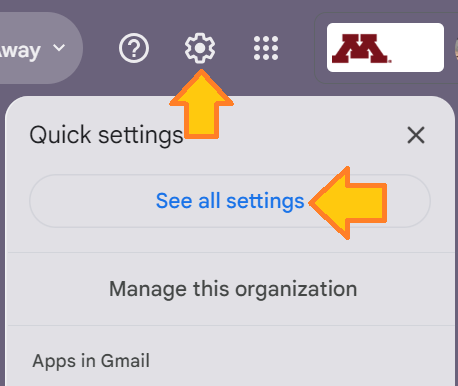
Sign in to the shared inbox account on a computer (delegates cannot be added from the Gmail mobile app). Click the Settings gear in the top right, then "See all settings". Open the "Accounts and Import" tab (it may just say "Accounts").
Source: IT@UMN: Gmail delegate email access (add account) - 4
Add the delegate
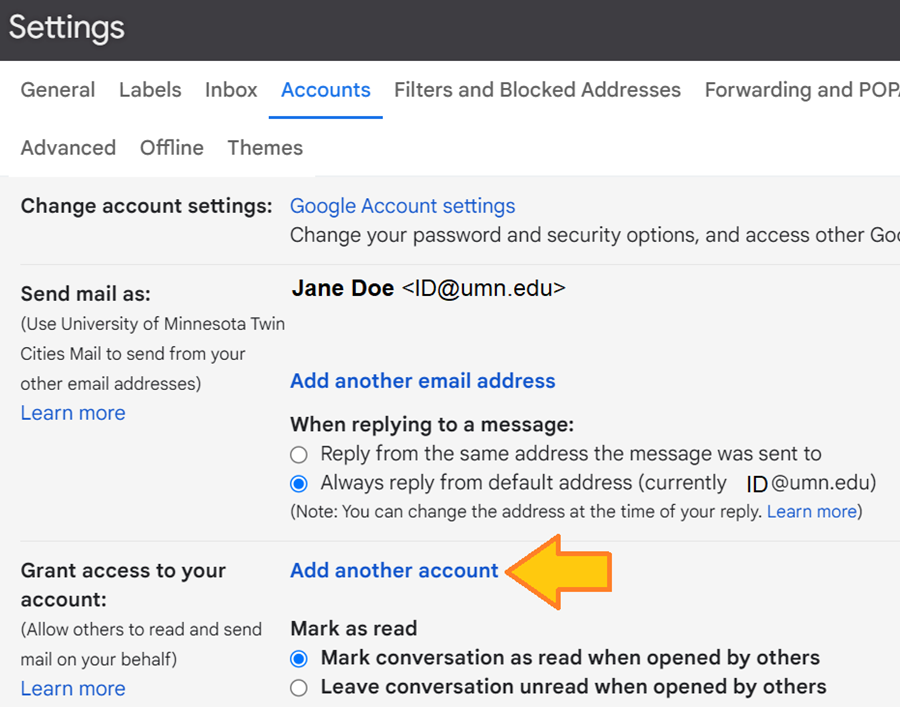
Find the "Grant access to your account" section and click "Add another account". Enter the email address of the person you are giving access to, then click "Next Step" and "Send email to grant access". Google emails an invitation that the delegate must accept within a week. Access can take up to 24 hours to activate.
Source: IT@UMN: Gmail delegate email access (add account) - 5
Confirm it is ready
Once the person you invited accepts the invitation, they can read, search, and organise the inbox from their own Gmail. Remember that delegation also lets them send and delete mail, so agree up front that the review is look-only. They cannot change your password or account settings, and nothing in your mailbox changes when access is granted.
Removing access afterwards
- Sign in to the shared inbox on a computer and open Settings, then "See all settings".
- Open the "Accounts and Import" tab.
- In the "Grant access to your account" section, click "Delete" next to the delegate. Access ends straight away.
If that option is not available
Because Gmail cannot delegate to an outside address, and delegation is never view-only, the simplest option is often a short call where you share your screen and walk an adviser through the shared inbox while they map how it is used. This is the only genuinely read-only route: it needs no setup, nothing changes in your mailbox, and no password is ever shared.
Frequently Asked Questions
No. Gmail delegation lets a delegate read, send, and delete mail on your behalf, but there is no setting that limits them to viewing only. Because of this, many people treat delegated access as review-only and, for a quick review, prefer a short screen-share so nothing in the inbox is touched.
Not directly. Google only allows delegation between accounts in the same Workspace organisation, so an external address cannot be added. The usual options are a screen-share, or creating a temporary internal account that you remove afterwards.
No. A delegate cannot change the account password, cannot open the Google Account settings, and cannot chat from the account. Delegation is limited to working with mail, and you can remove it at any time.
After you send the invitation, the delegate must accept it, and the invitation expires after a week. Once accepted, it can take up to 24 hours before the delegate can use the mailbox.
Open the shared inbox on a computer, go to Settings, then the "Accounts and Import" tab, and in the "Grant access to your account" section click Delete next to the delegate. Access ends immediately.
Related guides
Steps last checked against Google Workspace (shared inbox) on 2026-06-10.
Based on official Google Workspace (shared inbox) documentation: Gmail help centre: delegate and collaborate on email, Google Workspace admin help centre: let users delegate access to a Gmail account. Google Workspace (shared inbox) is a trademark of its respective owner; this guide is independent and for instruction only.
Want this handled for you?
Clever Ops connects and automates the systems mid-market businesses already run. Book a free assessment and we will map your stack.