How to give read-only access to Content Snare
Read-only access lets someone you trust, such as a bookkeeper, accountant, or consultant, look inside your Content Snare account without being able to change anything. In Content Snare this is the Viewer role, the lowest available team role. A Viewer can review how you collect client information, including your clients, templates, reminder schedules, and unpublished requests, but cannot send, edit, approve, reject, or delete anything. One limit worth knowing: Content Snare's permission list grants Viewers sight of requests that have not been published, so a request already live with a client may not be visible to them. It takes only a few minutes to set up, the person you invite signs in with their own login (you never share your password), and you can remove the access at any time.
Watch the walkthrough
Access to grant
Viewer role (the lowest team role). Can view clients, templates, reminder schedules, and unpublished requests (Content Snare's permission list does not extend Viewer access to published requests). Cannot send, edit, approve, reject, or delete anything.
Who you're granting access to
- Anyone you need to give view-only access to: a bookkeeper, accountant, consultant, or another adviser who needs to review your account without making changes.
Before you start
- You need to be an Admin (or the account owner), as only Admins can add team members.
- The email address of the person you want to give access to.
Step by step
- 1
Open the Team area
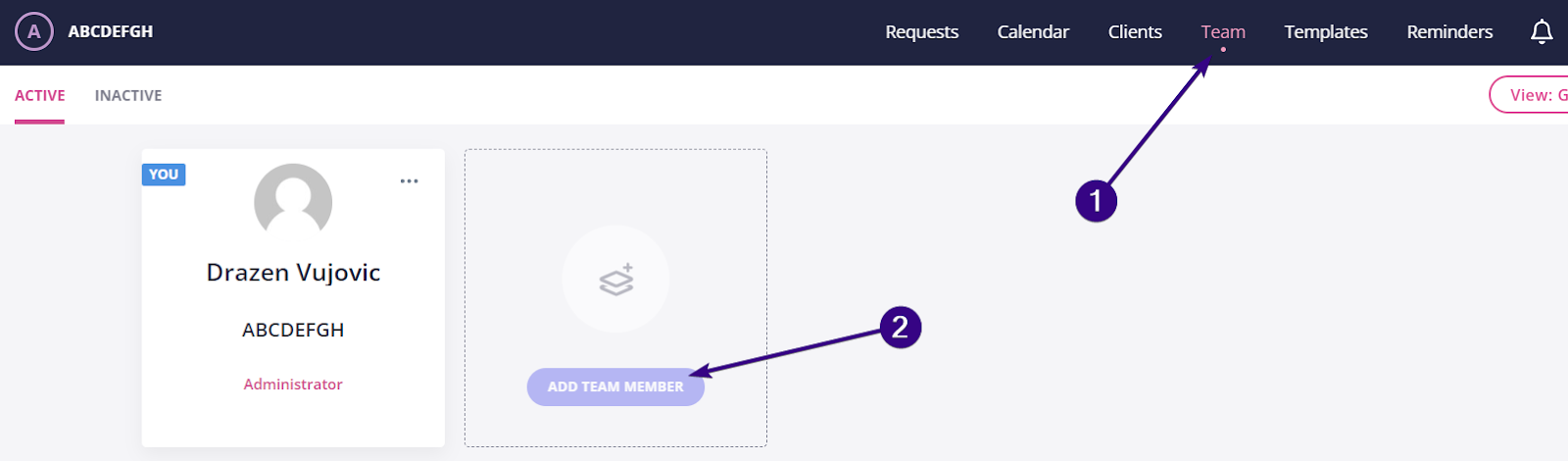
Sign in to Content Snare. Click "Add new" in the upper-right corner and choose "Team Member", or go to the Team tab and click "Add team member".
Source: Content Snare help centre: Team & permissions - 2
Enter the name and email
Type the first name, last name, and email address of the person you are giving access to. Both name and email are required before you can save.
- 3
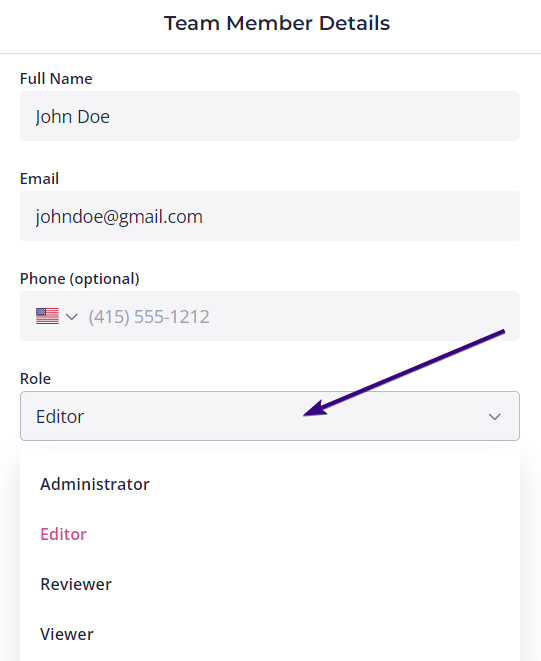
Set the Role to Viewer
The Role field defaults to Editor. Click the Role dropdown and change it to "Viewer". Viewer is the most restricted role: it can view your clients, templates, reminder schedules, and unpublished requests, but cannot send emails, approve or reject answers, edit requests, or create or delete anything. Note that Content Snare lists only unpublished requests as viewable for this role, so if the review needs to cover requests already published to clients, plan a screen-share for that part.
Source: Content Snare help centre: Team & permissions - 4
Save and send the invite
Click "Save" in the upper-right corner. Content Snare emails the person an invitation. Once the person you invited accepts it, they can sign in and view your account, but cannot change anything. Nothing in your account changes when they accept.
Removing access afterwards
- Open the Team tab.
- Click the team member you want to remove in the list.
- Remove the team member and confirm. Their access ends immediately.
If that option is not available
If you would rather not add a team member, you can share your screen on a short call and walk the person through Content Snare while they review how you collect client information. There is never any need to share your password.
Frequently Asked Questions
No. The Viewer role can view your clients, templates, reminder schedules, and unpublished requests, but cannot send emails, approve or reject client answers, edit requests, or create or delete anything. It is the safest role for someone who only needs to review your account. Keep in mind that Viewer access covers requests that have not been published, so published requests may need a screen-share to review.
Editor is the default role and can change requests and send emails to your clients. If the person only needs to look, the Viewer role, which is the lowest role, keeps your account and your clients untouched.
Open the Team tab, click the team member, and remove them. Access ends straight away. Removing a Viewer does not affect any of your requests, clients, or templates.
No. Team members are internal to your account. The clients filling in your requests do not see who is on your team, and a Viewer cannot email or contact them.
It depends on your Content Snare plan. The Basic plan allows up to 2 team members, the Plus plan up to 5, and the Pro plan up to 10, with custom plans allowing more. Check your plan if the Save button or the add option is unavailable.
Related guides
Steps last checked against Content Snare on 2026-06-10.
Based on official Content Snare documentation: Content Snare help centre: Team & permissions, Content Snare: Team feature overview. Content Snare is a trademark of its respective owner; this guide is independent and for instruction only.
Want this handled for you?
Clever Ops connects and automates the systems mid-market businesses already run. Book a free assessment and we will map your stack.