How to create a ServiceM8 API key
A ServiceM8 API key is a credential that lets a developer, consultant, or connected tool read your ServiceM8 data through the API without anyone signing in to your account by hand. It works like an automated login: instead of a username and password, the tool sends the key with every request, and ServiceM8 returns your jobs, clients, quotes, and other records. ServiceM8 calls this a private application API key, and it is the simplest way to connect a single ServiceM8 account to one tool or script. Each key can be created as Read Only so a connected tool can see your data but never change it, and you can delete a key at any time to cut off access instantly. This guide walks through creating a key in your account, scoping it to read-only, sharing it safely, and revoking it when you are done.
Keep this credential safe
An API key is like a password. Anyone who has it can access whatever the key allows, so handle it with the same care. Scope it to Read Only wherever the data only needs to be read. Share it through a secure method, such as a password-manager share link, never plaintext email or chat. Give a separate key to each tool or person so you can revoke one without affecting the others. Delete or rotate a key as soon as it is no longer needed, or the moment you suspect it has been exposed.
Watch the walkthrough
Access to grant
A private application API key (ServiceM8 calls it an "API Key"). Set the API Key Type to Read Only so the connected tool can read your data but cannot create, edit, or delete records.
Who you're granting access to
- The developer, consultant, or tool that will read your ServiceM8 data through the API.
Before you start
- A ServiceM8 account, and access to Account, then Settings, where the API Keys area lives (this is usually the account owner or an administrator).
- A clear name for the key so you can recognise it later, for example the name of the tool or person that will use it.
Step by step
- 1
Open Account, then Settings, then API Keys
Sign in to ServiceM8 in your web browser. Go to Account, then Settings, then API Keys. This page lists any keys that already exist for your account and is where you create new ones.
- 2
Click Add API Key and name it
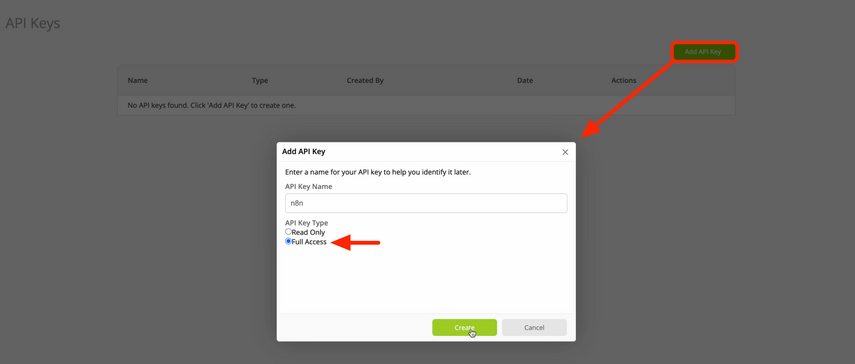
Click the "Add API Key" button in the top right. In the dialog, enter an API Key Name that tells you what the key is for, for example "n8n" or the name of the tool or person using it. The name is shown against any actions the key performs in ServiceM8, so a clear name makes the key easy to recognise and audit later.
Source: ServiceM8 help centre: How to connect ServiceM8 to n8n - 3
Set the API Key Type to Read Only
Under API Key Type, choose "Read Only". ServiceM8 describes Read Only as the type to use when a workflow only reads data from ServiceM8 with no changes or updates. Only choose "Full Access" if the connected tool genuinely needs to create or update records, for example to add a note or create a job. For a tool that just needs to read your data, Read Only is the safer choice.
- 4
Create the key and copy it straight away
Click "Create" to generate the key. Copy the key the moment it appears and store it somewhere safe, such as a password manager. Treat it exactly like a password. Then share it with the developer or tool through a secure method, such as a password-manager share link, and never paste it into plaintext email or a chat message.
- 5
Give the key to the tool or developer
The connected tool or your developer enters the key into their ServiceM8 connection. From then on the tool sends the key with every request (in the X-API-Key header) to read your data. Nothing else in your account changes, and you can revoke the key at any time.
Removing access afterwards
- Go to Account, then Settings, then API Keys.
- Find the key in the list by the name you gave it.
- Delete the key. Access through that key ends immediately, so anything still using it stops working at once.
- If a tool still needs access, create a fresh key and hand it over securely. This is also how you rotate a key you suspect has been exposed: delete the old one and issue a new one.
If that option is not available
If you cannot see the API Keys area, you may not have the right account access, so ask the account owner or an administrator to create the key for you. If you would rather not create a key at all, you can share your screen on a short call and walk your developer through the relevant ServiceM8 records live. You should never need to share your ServiceM8 password.
Frequently Asked Questions
The API key (a private application key) is the simplest path: it connects one tool or script to a single ServiceM8 account, and you create it yourself in Account, then Settings, then API Keys. The public OAuth app path is for developers building an add-on that many different ServiceM8 customers will connect to, and it needs a developer account and the OAuth flow. For connecting your own account to one tool, the API key is the right choice.
Treat the key like a password. Store it in a password manager, share it only through a secure method such as a password-manager share link rather than plaintext email or chat, and never commit it into shared documents or screenshots. Scope it to Read Only where the tool only needs to read your data, give each tool its own key, and delete or rotate the key when it is no longer needed.
Go to Account, then Settings, then API Keys, find the key by the name you gave it, and delete it. Access through that key stops immediately. To rotate a key, delete the old one and create a new one, then hand the new key to the tool through a secure method. ServiceM8 advises deleting a key and creating a new one if a key is ever exposed.
Yes. You can create a separate key for each tool, person, or workflow, and give different keys different access levels. This is good practice: a separate key per tool means you can revoke one without affecting the others, and the key name shown against actions in ServiceM8 makes it clear which connection did what.
No. Creating a key simply produces a credential a tool can use to read your data through the API. It does not move or alter any of your jobs, clients, or records, and it does not affect anyone who signs in to ServiceM8 the normal way. You stay in control and can delete the key whenever you like.
Related guides
Steps last checked against ServiceM8 on 2026-06-09.
Based on official ServiceM8 documentation: ServiceM8 developer docs: Authentication, ServiceM8 developer docs: Add-on Types (private vs public applications), ServiceM8 help centre: How to connect ServiceM8 to n8n (API Keys setup). ServiceM8 is a trademark of its respective owner; this guide is independent and for instruction only.
Want this handled for you?
Clever Ops connects and automates the systems mid-market businesses already run. Book a free assessment and we will map your stack.