How to create a Square API key (read-only)
A Square API credential lets a connected tool read your Square data, such as payments, payouts, invoices, customers, bookings, and your merchant profile, so it can report on activity without you exporting anything by hand. There is an important nuance worth understanding before you start. Square offers two credential types. A personal access token (on the application's Credentials page) is the quickest to copy, but Square describes it as providing unrestricted API access across your whole account and it cannot be made read-only. For a genuinely view-only credential, the connected tool must connect via OAuth and request only the read scopes (the *_READ permissions), so it literally cannot create refunds, edit invoices, or change customer records. This guide shows you how to create an application in the Square Developer Console, where each credential lives, which read-only OAuth scopes to authorise, how to test safely in Sandbox first, and how to revoke or rotate access later. Read it through before you hand any credential to a third party.
Keep this credential safe
Treat any Square credential like a password. The personal access token is the biggest risk because Square describes it as unrestricted access to your whole account (payments, refunds, payouts, and customer PII), so for view-only access do not hand it over: use OAuth with only the *_READ scopes so the tool literally cannot write, refund, or cancel. Grant the narrowest set of read scopes the tool actually needs. Never put a token in client-side code, a browser, email, chat, or version control; store it in a password manager or secrets manager and share it via a one-time password-manager link rather than email or chat. Prefer the shortest viable token life, rotate refresh tokens regularly (Square advises every 7 days or less), and revoke or reset the credential as soon as the tool no longer needs it. Test in Sandbox first so live data is never exposed during setup.
Watch the walkthrough
Access to grant
OAuth access token scoped to read-only permissions (PAYMENTS_READ, PAYOUTS_READ, INVOICES_READ, CUSTOMERS_READ, APPOINTMENTS_READ plus APPOINTMENTS_ALL_READ for seller-level bookings, and MERCHANT_PROFILE_READ). A personal access token provides unrestricted, full read and write access and cannot be made read-only.
Who you're granting access to
- Your bookkeeper, accountant, or another adviser you want to give view-only access.
- A reporting or analytics tool that only needs to read your Square activity.
Before you start
- A Square account where you are the owner or an admin with developer access
- The sign-in details for your Square account (the Developer Console uses the same login)
- The OAuth Application ID and Redirect URL details from the connected tool you are linking (only if you are using the recommended read-only OAuth path)
Step by step
- 1
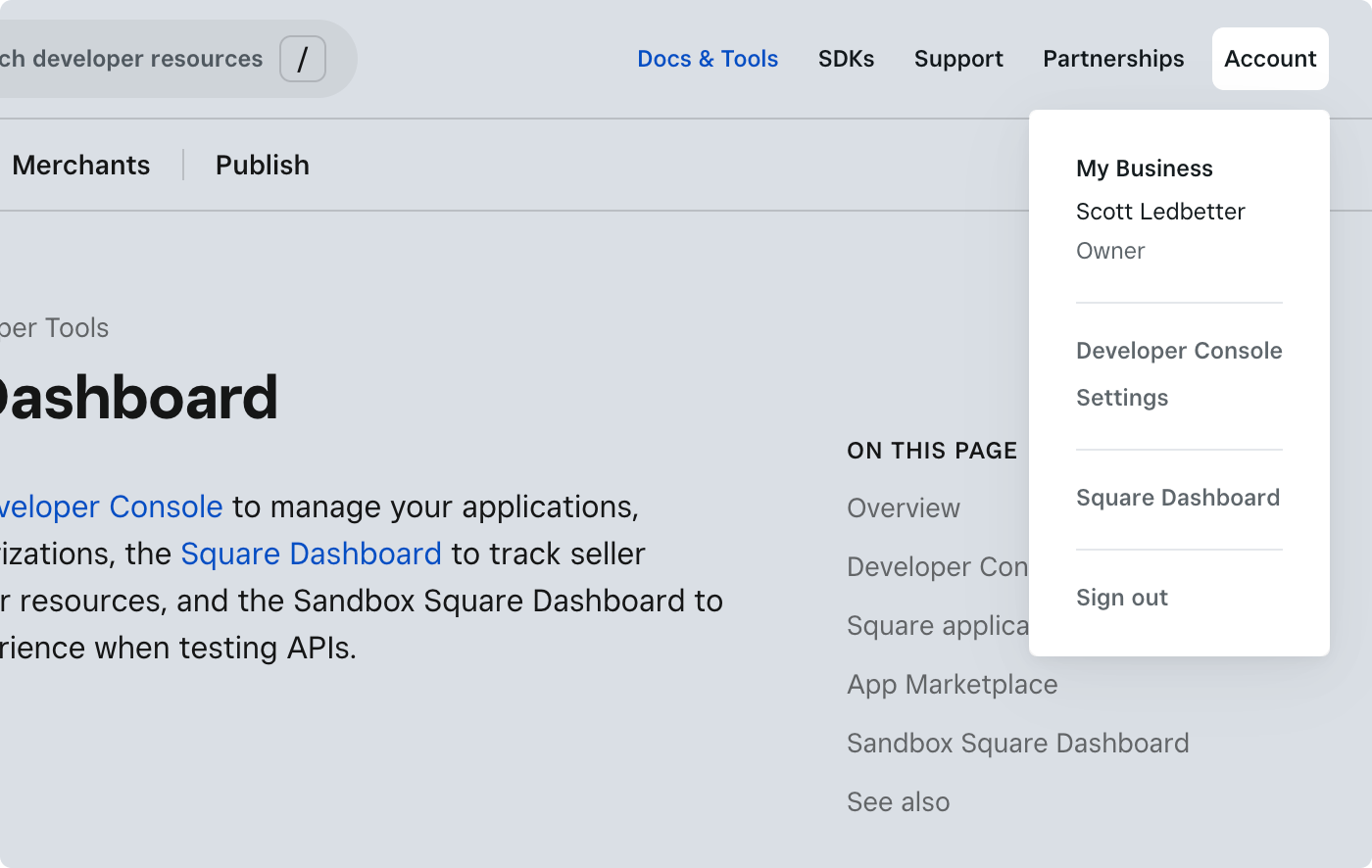
Sign in to the Square Developer Console
Go to https://developer.squareup.com/apps and sign in with the same login you use for your Square account. The Developer Console is where you manage applications, credentials, and authorisations.
Source: Square Developer Console overview (Applications page) - 2
Create an application
On the Applications page, create a new application (for your first one, choose the option to create your first application). Give it a name and save it. Square then opens the new application for you.
- 3
Open the app and choose your environment
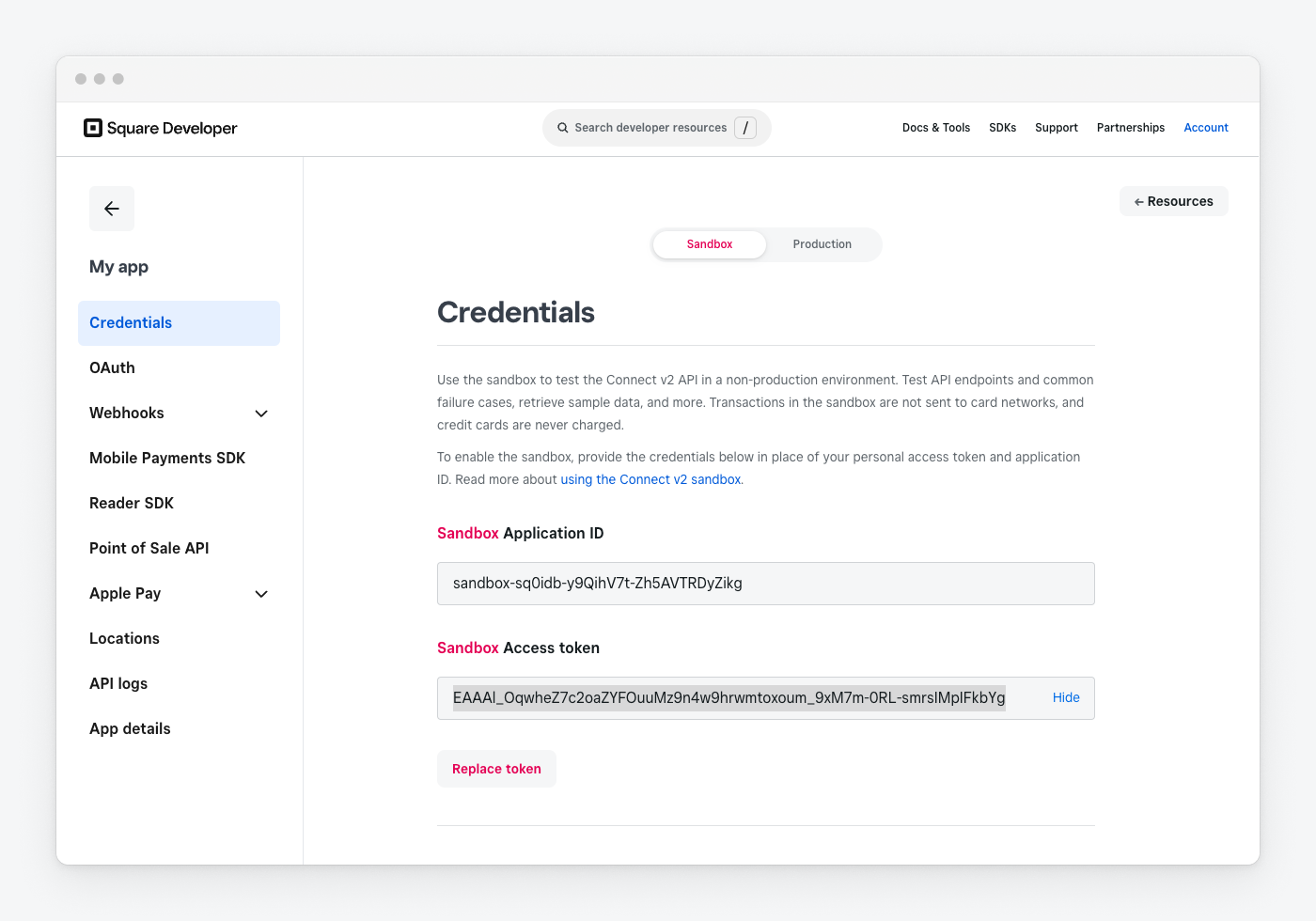
Open your application from the Applications page. At the top, toggle the environment to Production for live data, or use Sandbox while you test. The credentials shown change depending on which environment is selected.
Source: Access Tokens and Other Square Credentials (Credentials page, environment toggle) - 4
Use the OAuth path for genuine read-only access
In the left pane choose OAuth. Here you will find the Application ID and Application secret (use Show to reveal the secret) and you can set the Redirect URL the connected tool needs (choose Update, enter the URL, then Confirm). The OAuth path is the only way to get a read-only credential, because the next steps let you grant just the *_READ scopes.
- 5
Authorise only the read scopes
When the connected tool sends you through Square's OAuth consent screen, review the permissions and grant only the read scopes it needs: PAYMENTS_READ, PAYOUTS_READ, INVOICES_READ, CUSTOMERS_READ, APPOINTMENTS_READ (and APPOINTMENTS_ALL_READ as well for seller-level bookings), and MERCHANT_PROFILE_READ. The tool handles the token exchange after you approve, so you do not copy a token by hand.
- 6
Test in Sandbox before going live (advised)
Each application also exposes separate Sandbox credentials on the Credentials and OAuth pages when the Sandbox toggle is on. Use them to validate the integration against test data, then switch to Production so live records are never touched during setup.
- 7
Avoid the personal access token if you want read-only
On the Credentials page, the Production Access token box has a Show button that reveals a token you can copy. Be aware Square describes this token as providing unrestricted API access across your entire Square account and it cannot be scoped down, so only use it if you fully trust the tool with complete access. For view-only, stay on the OAuth path above.
Removing access afterwards
- OAuth access (recommended path): the account owner can remove a connected app from their Square account's connected-apps or authorisations settings, which ends the app's access.
- OAuth access (developer side): the application can call the RevokeToken endpoint (POST /oauth2/revoke) authenticating with an Authorization: Client header containing the application secret, plus the client_id and the access_token or merchant_id; a successful call returns success true. Set revoke_only_access_token to true to kill just one compromised token while keeping the authorisation.
- OAuth access tokens expire after 30 days by default and are refreshed by calling ObtainToken with grant_type=refresh_token; Square advises renewing every 7 days or less. On refresh, pass a smaller scopes array to drop permissions you no longer need.
- Personal access token: there is no per-token revoke button. To invalidate it, open the application in the Developer Console, go to Credentials (Production), and reset the access token, which issues a new one and breaks every integration using the old one. To fully kill the integration, delete the application.
If that option is not available
A genuinely read-only credential is OAuth-only: Square's personal access token provides unrestricted access and cannot be scoped down, so read-only requires the connected tool to operate as an OAuth app and you to approve only the *_READ scopes on the consent screen. No developer-portal approval or app review is needed to create an application, generate a personal access token for your own account, or run a private OAuth app in production (production OAuth only requires technical readiness steps such as an HTTPS redirect URL). App Marketplace partner approval and the roughly five-active-sellers requirement apply only to publishing a public, listed app. If your tool does not support OAuth, your only options are to hand it the full-access personal access token, which is not read-only, or ask the vendor to add OAuth support.
Frequently Asked Questions
No. The personal access token on the Credentials page provides unrestricted, full read and write access across your entire account and cannot be scoped down through any toggle. For genuine read-only access, the connected tool must use OAuth and request only the *_READ scopes.
Grant only the read scopes the tool needs: PAYMENTS_READ for payments, PAYOUTS_READ for payouts, INVOICES_READ for invoices, CUSTOMERS_READ for customers, APPOINTMENTS_READ (plus APPOINTMENTS_ALL_READ as well for seller-level bookings), and MERCHANT_PROFILE_READ for the merchant profile. These read scopes exist separately from the write scopes.
No. You can create an application, generate a personal access token for your own account, and run a private OAuth app in production without any app review. Partner approval and the roughly five-active-sellers requirement apply only if you want to publish a public, listed app in the App Marketplace.
It is not shown in the Developer Console. The OAuth access token is returned by the ObtainToken API call and must be stored by the connecting application, so on the OAuth path the tool handles it after you approve the consent screen. Only the personal access token is viewable, via the Show button on the Credentials page.
For OAuth, remove the connected app from your Square account's connected-apps settings, or have the developer call the RevokeToken endpoint. For a personal access token there is no revoke button, so you reset the access token on the Credentials page (which breaks every integration using the old one) or delete the application.
Yes, it is advised. Each application has separate Sandbox credentials on the Credentials and OAuth pages when the Sandbox toggle is on, so you can validate the integration against test data before switching to Production and touching live records.
Related guides
Steps last checked against Square on 2026-06-15.
Based on official Square documentation: Access Tokens and Other Square Credentials, OAuth Permissions Reference (exact *_READ scope names), Developer Console overview (Applications, Credentials, OAuth panes), Create an Account and Application, Refresh, Revoke, and Limit the Scope of OAuth Tokens, RevokeToken API reference, OAuth API overview, Move OAuth from the Sandbox to Production, App Marketplace API Usage Requirements. Square is a trademark of its respective owner; this guide is independent and for instruction only.
Want this handled for you?
Clever Ops connects and automates the systems mid-market businesses already run. Book a free assessment and we will map your stack.