How to Create a BriteBiz API Key (Read-Only)
This guide covers how to give a connected tool read-only access to your BriteBiz data, such as invoices, payments, customers, and bookings. Read-only means the tool can view records but cannot edit, create, or delete anything in your account, which keeps the grant safe even if the credential is shared with an external adviser. There is an important caveat: BriteBiz does not publicly document a self-serve API or developer portal. Across the vendor site, help centre, and independent review sites (GetApp and Capterra list no API attribute), the only confirmed integration points are pre-built native connectors (Stripe, Authorize.net, Xero, QuickBooks, Gmail, Outlook, Google Calendar, Calendly, Mailchimp, PandaDoc, Facebook, Google Ads, and wedding directories such as Wedding Wire and The Knot). So the most reliable read-only path is usually through a downstream synced system: your invoices and payments already sync to Xero or QuickBooks, and payment detail sits in Stripe or Authorize.net, each of which has a well-documented read-only credential. This guide shows you how to check for a native BriteBiz API option, how to use the downstream connector path, and how to confirm any first-party credential directly with BriteBiz before you rely on it.
Keep this credential safe
Treat any credential like a password. BriteBiz holds sensitive payment, invoice, customer, and booking data, and no documented read-only or scoped BriteBiz key could be confirmed, so prefer reading from a downstream system using that vendor's read-only credential (a Stripe restricted key with resource permissions set to Read, or a Xero custom connection limited to read scopes) rather than granting broad BriteBiz account access. If BriteBiz only offers a full-account login or an unscoped key, that is an over-privileged grant: flag it, scope down where possible, store the secret in a password manager, share it via a password-manager link rather than email or chat, rotate it periodically, and revoke it immediately when the connected tool is decommissioned. Confirm with BriteBiz whether any credential is read-only or grants write access, since the public docs do not say.
Watch the walkthrough
Access to grant
Read only. BriteBiz has no confirmed self-serve read-only key; the recommended substitute is a downstream read-only credential, such as a Stripe restricted key scoped to read permissions, or a Xero custom connection limited to read scopes.
Who you're granting access to
- Your bookkeeper, accountant, or another adviser you want to give view-only access.
Before you start
- An owner or admin login for your BriteBiz account (so you can see Settings and any integration options)
- Your BriteBiz workspace URL, usually a per-tenant subdomain such as https://yourcompany.britebiz.com
- Admin access to a downstream synced system (Xero, QuickBooks, or Stripe) if you take the recommended connector path
Step by step
- 1
Confirm whether BriteBiz exposes an API at all
Public sources show no documented BriteBiz API, API-key screen, access token, or developer portal, so do not assume one exists. Treat this step as a quick reality check: the likely outcome is that direct read-only access is not self-serve, and you will use a connector or ask BriteBiz support instead.
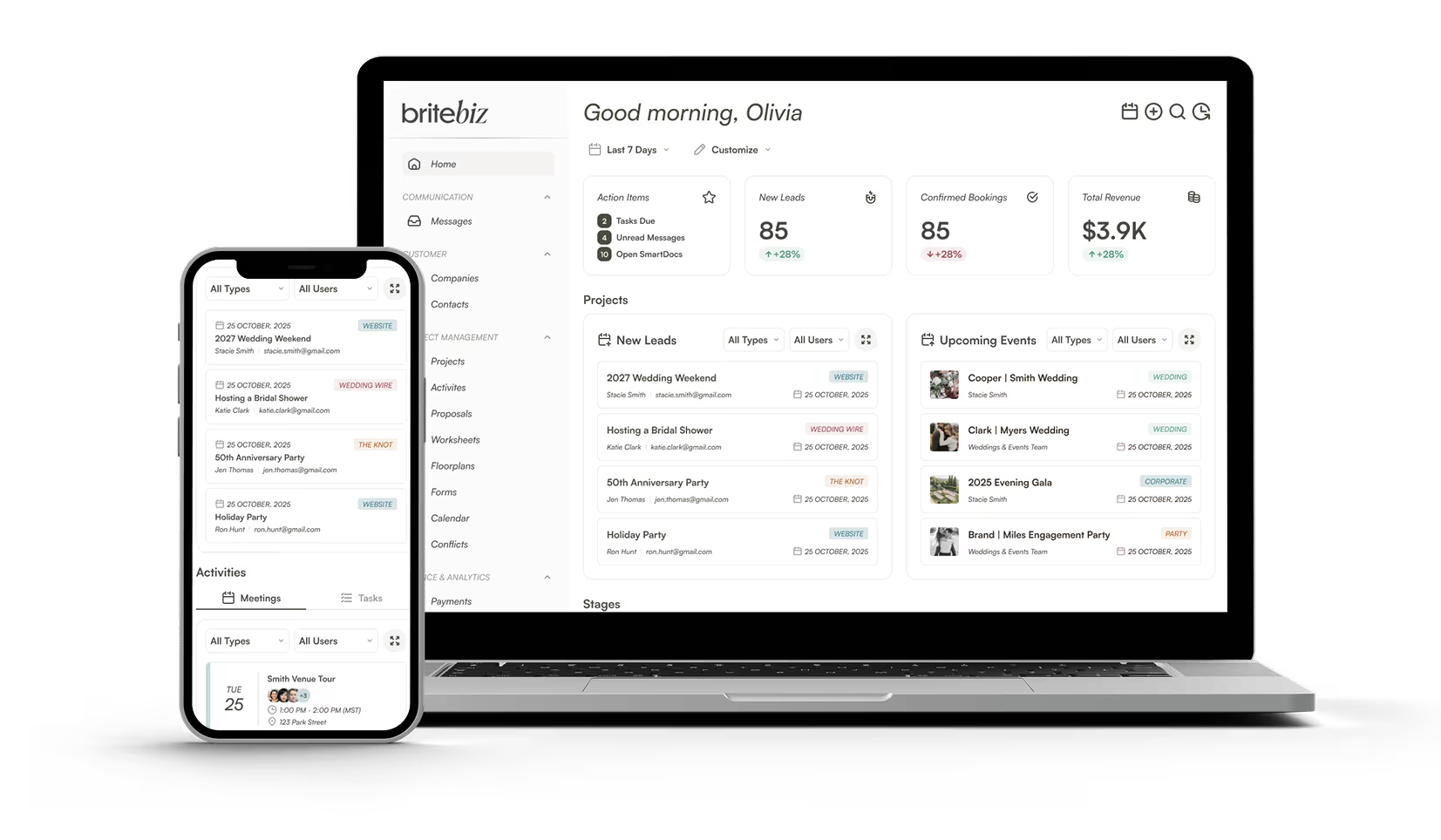
Source: BriteBiz Features page (lists native integrations; no API mentioned) - 2
Log in as owner or admin and open Settings
Sign in to BriteBiz at your workspace URL (for example https://yourcompany.britebiz.com) using an owner or admin account, then open the main Settings or Account area. The exact menu label is unverified online, so use what your live admin screen shows.
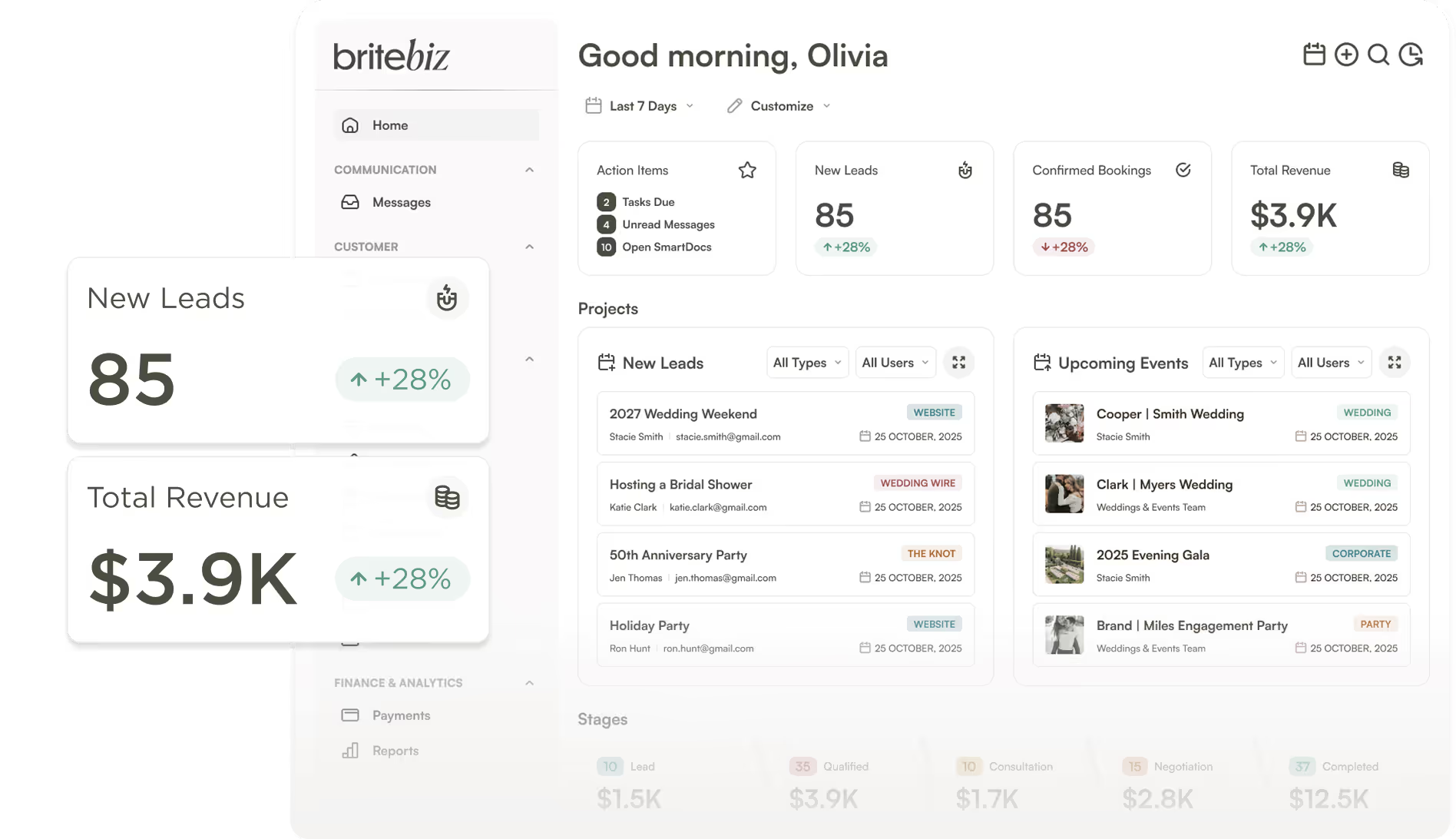
Source: BriteBiz official site (home) - 3
Look for an Integrations or API area
In Settings, find the Integrations area and look for any 'API', 'API key', 'Developer', or 'Access token' option. If none is present, there is no self-serve credential to create, and you should move to the native connector path in the next step.
- 4
Take the read-only data through a native connector instead
Because BriteBiz invoices and payments sync to Xero and QuickBooks, point the connected tool at the synced accounting system and use that vendor's documented read-only credential to view the records. For payment and payout detail, read from the linked Stripe or Authorize.net account, where you can issue a restricted key scoped to read permissions.
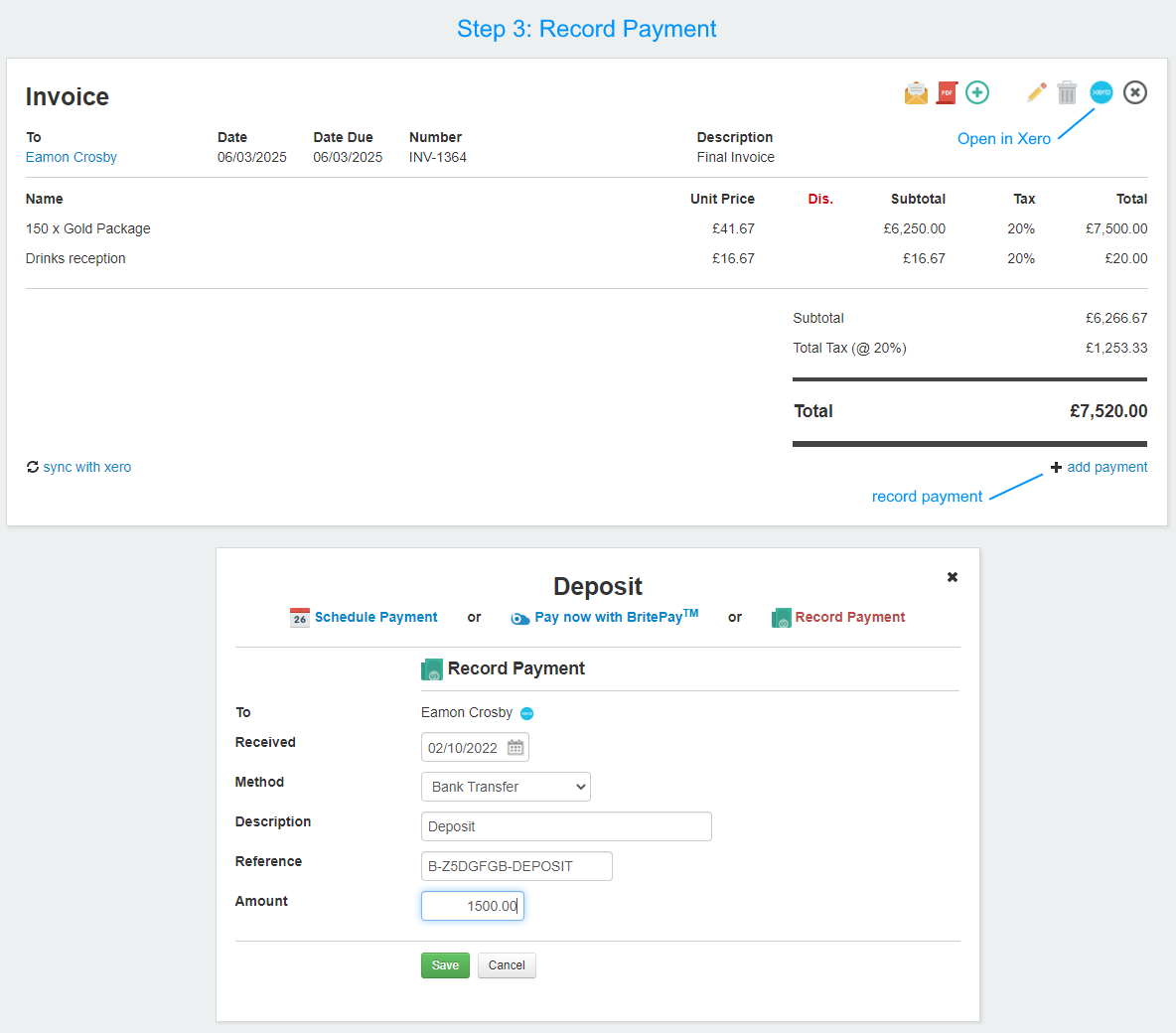
Source: BriteBiz on the Xero App Store - 5
Create the downstream read-only credential
In the chosen downstream system, create the read-only credential: in Stripe, create a restricted API key (rk_...) and set each resource permission to Read on the restricted-keys screen; in Xero, set up a custom connection limited to read scopes. Copy the secret once at creation, then store it in a password manager rather than a document or chat message.
- 6
Confirm a first-party BriteBiz credential with support
If the project genuinely needs a first-party BriteBiz credential, contact BriteBiz support through in-app chat, email, or phone and ask three questions: is there a REST API, is there a read-only or scoped credential, and how is it created and revoked. Record their written answer and treat any menu paths as confirmed only after they verify them.
Removing access afterwards
- BriteBiz revocation could not be confirmed publicly because no API-credential feature was found. If BriteBiz support confirms a key or token exists, revoke or regenerate it from the same Settings or Integrations area where it was created.
- For the recommended connector path, revoke access in the downstream system instead: disconnect the BriteBiz app in Xero (Settings, then Connected apps), or in QuickBooks (Apps, then disconnect).
- If you used a Stripe restricted key, roll or delete that key in the Stripe Dashboard (Developers, then API keys) so the old secret stops working.
- After revoking, regenerate a fresh credential and issue it only to the specific tool that needs it, then confirm the old secret no longer authenticates.
If that option is not available
BriteBiz has no confirmed self-serve API key or developer portal, so there may be no first-party read-only credential to create. Use a native connector instead: read invoices and payments from the synced Xero or QuickBooks account, and read payment or payout detail from the connected Stripe or Authorize.net account, each using that vendor's documented read-only credential. If you need direct BriteBiz access, contact BriteBiz support to ask whether a REST API and a read-only credential exist and how they are created and revoked, and do not rely on any path until they confirm it in writing.
Frequently Asked Questions
No public BriteBiz API, API-key screen, access token, or developer portal could be confirmed in vendor docs or independent review sites (GetApp and Capterra list no API attribute). BriteBiz appears to offer pre-built native connectors rather than a developer-facing API, so verify directly with BriteBiz support before assuming an API exists.
Read it from a downstream synced system. Invoices and payments sync to Xero and QuickBooks, and payment detail sits in Stripe or Authorize.net, so point your tool at one of those using its documented read-only credential.
Use an owner or admin login so you can open Settings and see any integration options. Admin access is also where you would manage native connectors such as Xero, QuickBooks, or Stripe.
If BriteBiz confirms a key exists, revoke or regenerate it in the same Settings or Integrations area. For the connector path, disconnect the BriteBiz app in Xero or QuickBooks, or roll the restricted key in the Stripe Dashboard.
No. BriteVerify is an unrelated email-verification product (from Validity) with its own API at docs.briteverify.com. Do not follow BriteVerify instructions when working with BriteBiz; they are different companies and products.
Related guides
Steps last checked against Britebiz on 2026-06-15.
Based on official Britebiz documentation: BriteBiz official site (home), BriteBiz Features page (lists native integrations; no API mentioned), BriteBiz Xero Integration listing (Xero App Store), BriteBiz profile on GetApp (integrations list; no API attribute), BriteBiz profile on Capterra (no API attribute listed), Stripe restricted API keys guide. Britebiz is a trademark of its respective owner; this guide is independent and for instruction only.
Want this handled for you?
Clever Ops connects and automates the systems mid-market businesses already run. Book a free assessment and we will map your stack.