How to set up API access to BGL CAS 360
BGL CAS 360 connects to other tools through the BGL API, which uses OAuth 2.0. Rather than a single secret key, access works in two parts. A developer registers an application on the BGL dev portal and is issued a Client ID and a Client Secret, and then you, the CAS 360 account holder, authorise that application to connect to your data through the BGL Integrations portal inside CAS 360. Once authorised, the connected tool can read company, trust, and entity data from your CAS 360 account programmatically, without anyone needing your CAS 360 login. The Client Secret behaves like a password, so it should be handled carefully, and you can revoke the connection from inside CAS 360 at any time without affecting your records. This guide walks through authorising the connection, what the developer needs, and how to revoke access when the work is done.
Keep this credential safe
A Client Secret (and any access token issued from it) is like a password: anyone who has it can access the CAS 360 data the connection allows. Keep it strictly to the developer or tool that needs it, scope the connection to read-only and to only the entities required where BGL lets you, and share any credential through a secure method such as a password-manager share link, never plaintext email or chat. Revoke the connection in the Integrations portal, and ask the developer to rotate the Client Secret, as soon as the integration is no longer needed or if you suspect it has been exposed.
Watch the walkthrough
Access to grant
An OAuth 2.0 application connection. The developer holds a Client ID and Client Secret; you authorise that application to access your CAS 360 entities through the Integrations portal.
Who you're granting access to
- The developer, consultant, or tool that will read your CAS 360 data through the BGL API.
Before you start
- A CAS 360 user account with the Administrator role, or a role that has the "Connect third party applications" permission enabled, so you can authorise or deny the connection.
- The Client ID (and where relevant the registered application name) from the developer or tool that will connect to your CAS 360 data.
- The developer or tool already has a BGL API application registered, which gives them their own Client ID and Client Secret.
Step by step
- 1
Confirm the developer has registered their application
The connecting tool or developer first registers an application on the BGL dev portal (api.bgl360.com.au), which issues them a Client ID and Client Secret on the BGL API Client Details page. They keep the Client Secret private. You do not create these credentials yourself, you authorise the application they have already registered. Ask them for the registered application name so you can recognise it in the next steps.
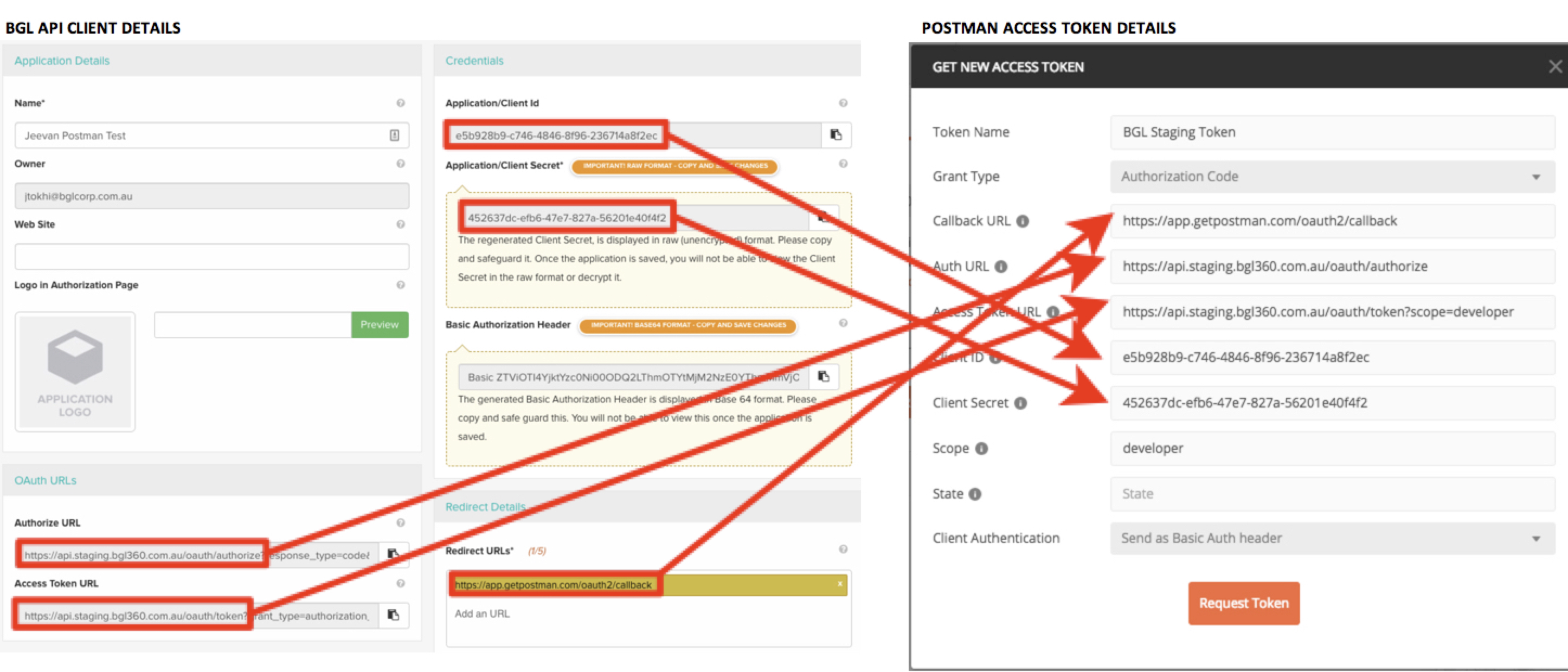
Source: BGL Ecosystem Blog: OAuth2 and how to use with BGL’s API - 2
Open the Integrations portal from the App Switcher
Sign in to CAS 360. In the top right-hand corner of the screen, hover over the BGL App Switcher icon, then select Integrations. This opens the BGL Integrations portal, where you manage which applications and which entities can be accessed through the API.
- 3
Authorise the third-party application
Find the application that wants to connect (or begin the connection from the third-party tool, which sends you to the BGL authorisation screen). A confirmation modal appears outlining exactly which data and user access the application is requesting. Review it, then choose to authorise the connection. Only authorise applications you recognise and trust, and grant access only to the entities the tool genuinely needs.
- 4
Let the tool complete the connection
Once you authorise, BGL completes the OAuth 2.0 exchange and issues the connected application an access token so it can call the API on your behalf. The developer does not see your CAS 360 password at any point. Nothing in your records changes when you authorise. If the tool needs the Client ID confirmed, that value is not secret and can be shared, but the Client Secret must never be shared back to you over email or chat.
Removing access afterwards
- Sign in to CAS 360 and open the App Switcher in the top right-hand corner, then select Integrations.
- In the BGL Integrations portal, find the connected third-party application in your list of authorised connections.
- Choose to deny, disconnect, or remove the application. Its access ends straight away, and it can no longer call the API for your data.
- If the developer suspects their Client Secret has been exposed, ask them to rotate it on the BGL dev portal, which invalidates the old secret.
If that option is not available
If the application you need is not yet registered with BGL, the developer must first create an application on the BGL dev portal to obtain a Client ID and Client Secret before you can authorise it. If you cannot see the Integrations option, ask your CAS 360 Administrator to grant you the "Connect third party applications" permission, or ask them to authorise the connection for you. For anything BGL must enable at the account level, raise a request with BGL support through the help centre.
Frequently Asked Questions
Not exactly. The BGL API uses OAuth 2.0, so the developer registers an application on the BGL dev portal and is issued a Client ID and Client Secret. Your job as the CAS 360 account holder is to authorise that application to access your data through the Integrations portal. You do not generate or hold the secret yourself.
Treat the Client Secret like a password. It should stay with the developer or tool that needs it and never be sent to you in plaintext email or chat. If a credential ever has to be shared, use a secure method such as a password-manager share link. Scope the connection to only the entities and access the tool needs, and revoke it when the work is done.
To authorise or deny a third-party application, you must be a CAS 360 Administrator or have the "Connect third party applications" permission enabled for your user role. If you cannot see the option, ask your Administrator to grant the permission or to authorise the connection for you.
When you authorise a connection, a confirmation modal shows exactly which data and user access the application is requesting before you agree. The application can then read the CAS 360 entities you have authorised it for, such as company, trust, and entity records, through the API. It cannot use your login, and you can limit which entities are accessible.
Open the App Switcher in the top right of CAS 360, select Integrations, find the connected application, and disconnect or remove it. Access ends immediately. For extra safety, ask the developer to rotate their Client Secret on the BGL dev portal, which invalidates the old credentials.
No. Authorising a connection only grants the application permission to call the BGL API for the data you allow. It does not alter your records, and removing the connection later leaves your data untouched.
Related guides
Steps last checked against BGL CAS 360 on 2026-06-09.
Based on official BGL CAS 360 documentation: BGL API documentation (dev portal), BGL Ecosystem Blog: OAuth2 and how to use with BGL’s API, CAS 360 support: BGL API, Simple Fund 360 Knowledge Centre: Manage Integrations and API Access. BGL CAS 360 is a trademark of its respective owner; this guide is independent and for instruction only.
Want this handled for you?
Clever Ops connects and automates the systems mid-market businesses already run. Book a free assessment and we will map your stack.